
This feature allows you to display helpful information when users hover over or tap the tooltip icon next to an image layer option in the configurator.
Overview
Tooltips on Image Layers are useful for:
- Explaining color options or materials
- Providing additional product details
- Showing short notes or reminders without cluttering the UI
How to Add Tooltip on Image Layers
Step 1: Edit Your Configurator
- Go to WP Admin → WP Configurator → Configurators
- Open the configurator you want to edit
Step 2: Select an Image Layer
- Navigate to the Layers panel
- Click on the Image Layer where you want to add a tooltip
- Select the specific option (e.g. color or variation)
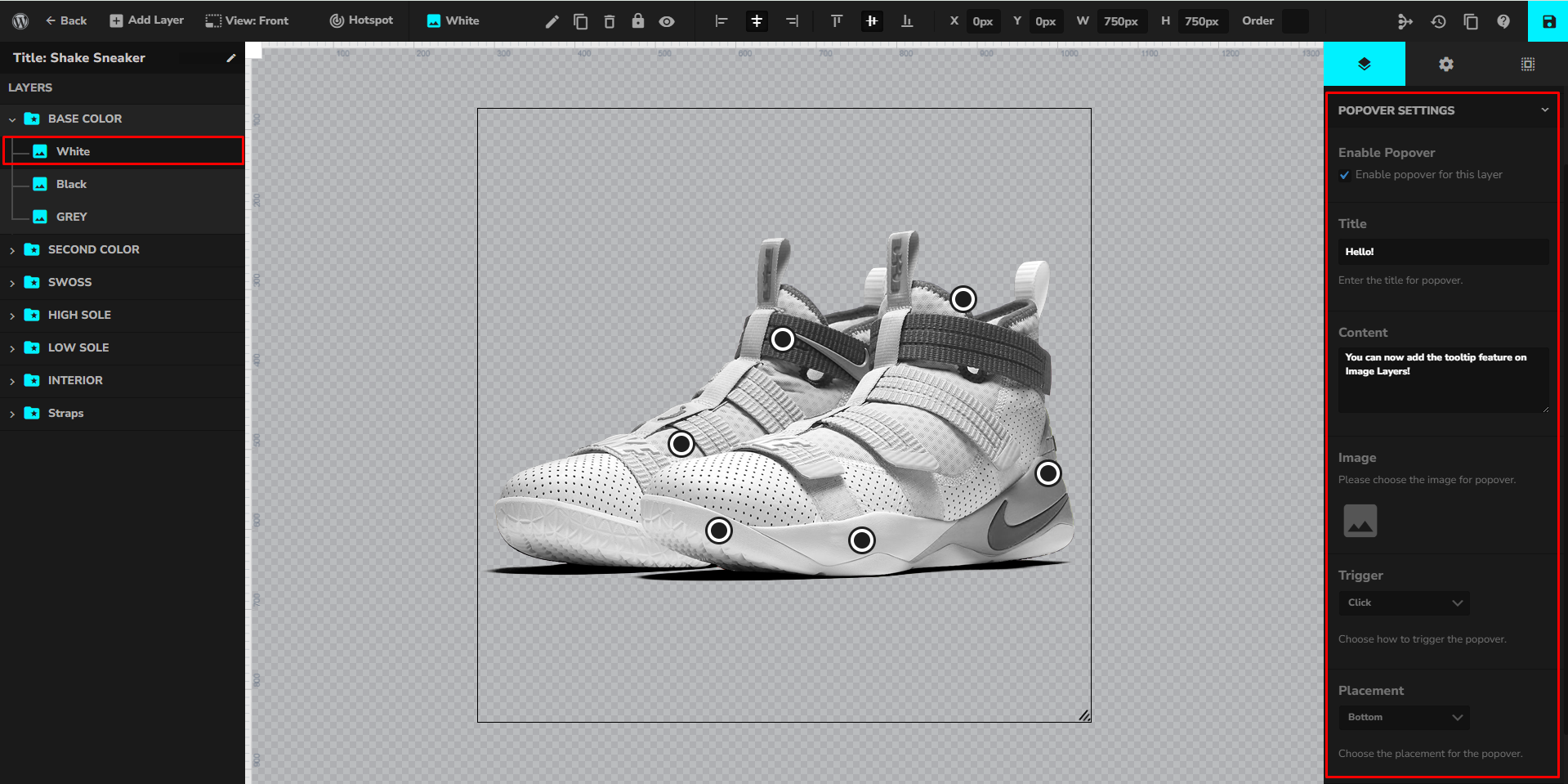
Step 3: Enable Tooltip
- In the option settings, locate the Tooltip field
- Enable or expand the tooltip setting
- Enter the tooltip content
You may include:
- Short text descriptions
- Usage notes
- Feature explanations
Step 4: Save Changes
- Click Save on the configurator
- Refresh the front-end page
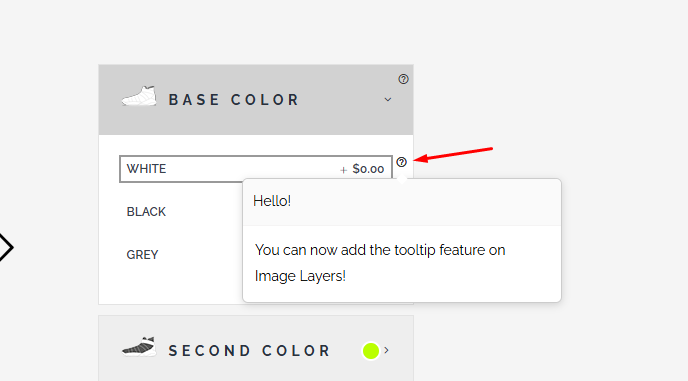
A tooltip icon will now appear next to the image layer option. When hovered or clicked, the tooltip content will be displayed.