The Download PDF feature in WP Configurator Pro allows customers to access a PDF of their product configuration. Visitors can download a PDF from any configurator. The email attachment and download links apply to configurators using the Quote Form. Once enabled, the feature can attach the PDF to emailed order details, display a download icon in the configurator, and provide a download link in the customer email.
How It Works
1. Enable the PDF Feature in Configurator Settings
Admin settings
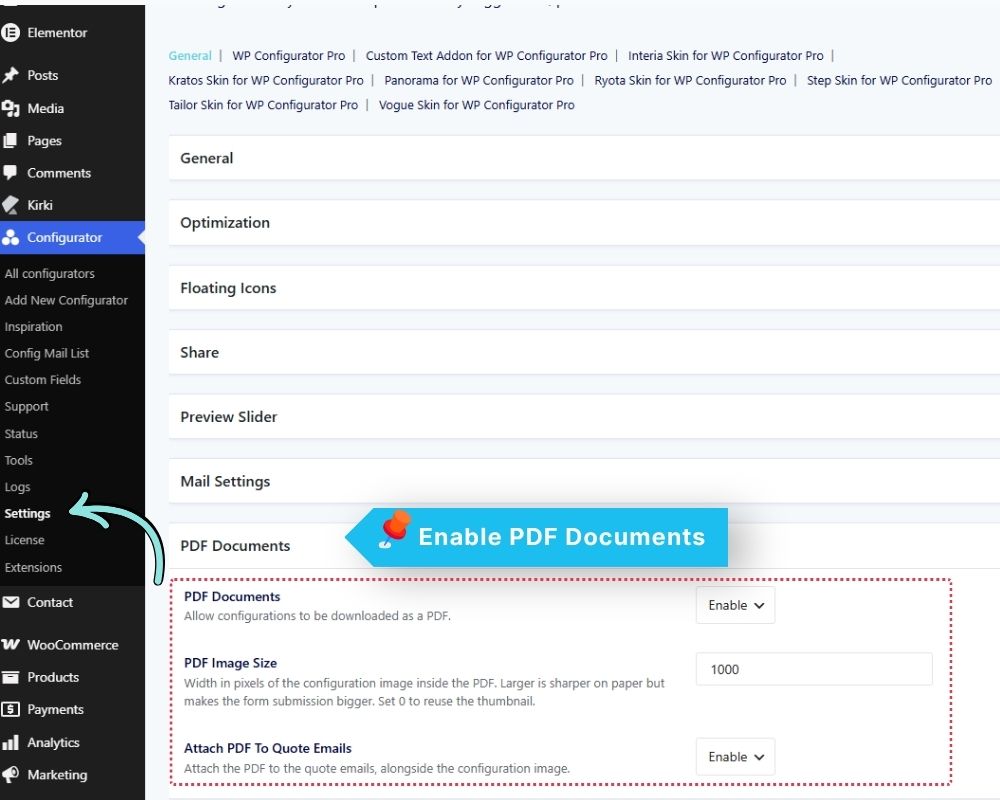
In your WordPress dashboard, navigate to Configurator → Settings → General.
Open the PDF Documents section.
Enable the PDF Documents feature.
Set desired PDF Image Size in px.
Enable Attach PDF to Quote Emails if you want the PDF attached to the quote email.
Save your settings.
This enables PDF generation and allows the configuration PDF to be included with quote-related emails.
2. Display the Download PDF Icon
Configurator display settings
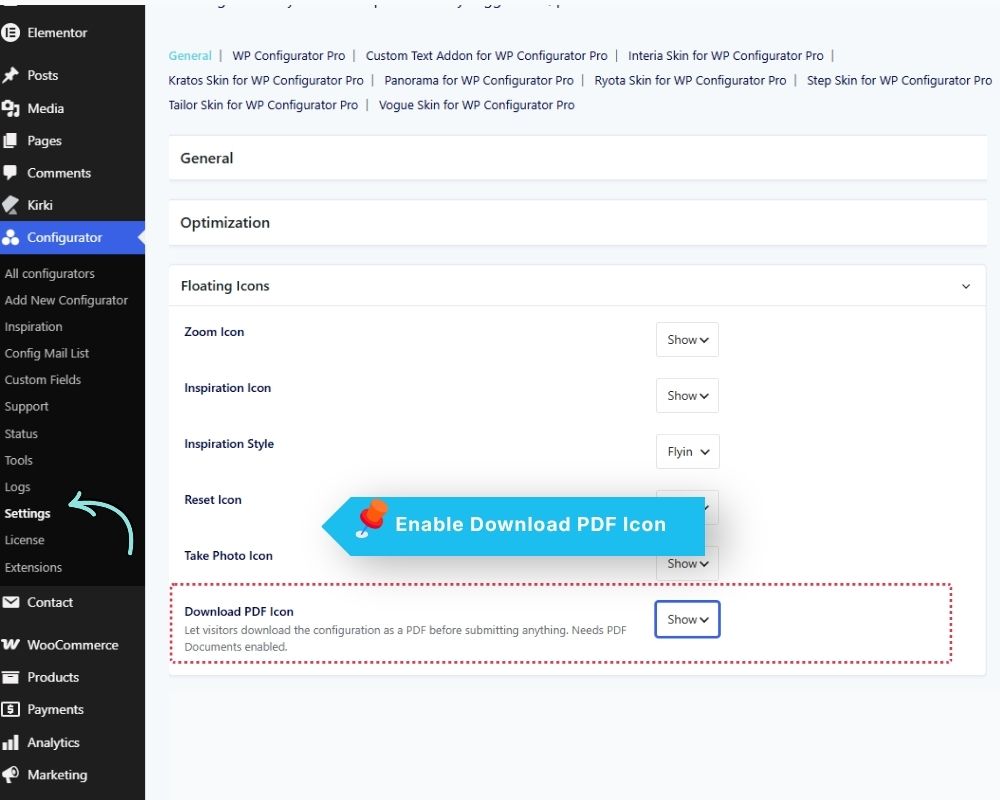
Go to Configurator → Settings → General.
Locate the Floating Icons section.
Find Download PDF Icon.
Set it to Show.
Once enabled, visitors can use the download icon to download their product configuration as a PDF before submitting their request. The PDF Documents feature must also be enabled.
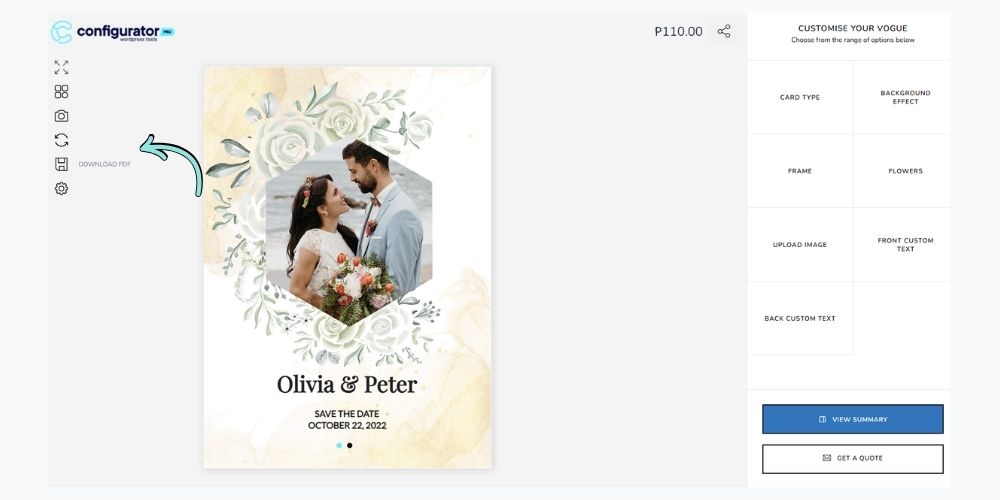
Download PDF Icon on the Visitor Interface
The Download PDF icon appears among the configurator’s floating icons. Visitors can click it to generate and download a PDF of their current configuration, provided the required PDF setting is enabled.
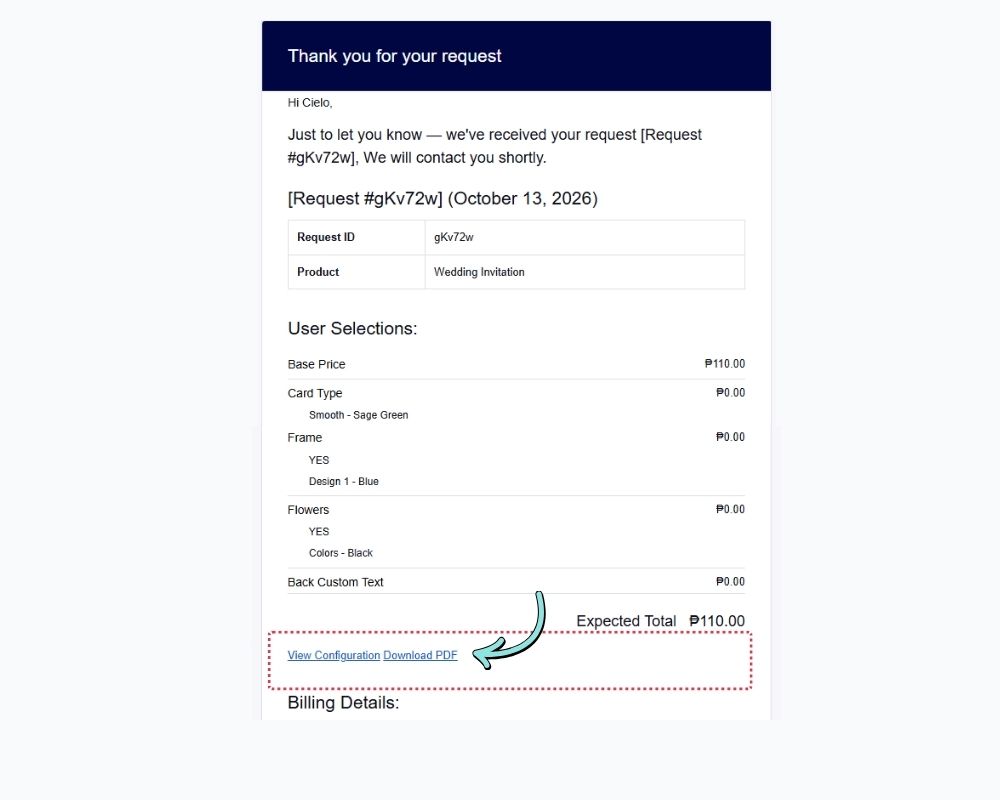
3. PDF Download Link in the Customer Email
The customer email also includes a Download PDF link, allowing the customer to access the PDF of their configuration after submitting the request. This appears only when PDF Documents is enabled.
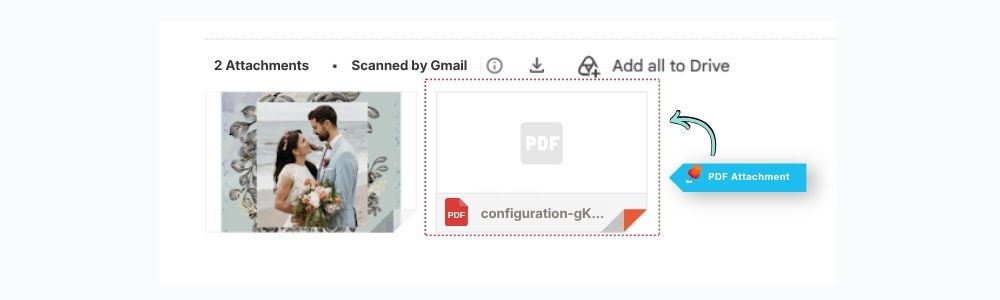
4. PDF Attached to the Quote Emails
When Attach PDF to Quote Emails is enabled, the configuration PDF is attached to both emails sent when a visitor submits the Quote Form: the notification the shop owner receives and the customer’s confirmation email. The PDF shows the product image, the selected options with their prices, and the customer’s details, so the request can be filed or forwarded as a single document.
5. Admin PDF Download
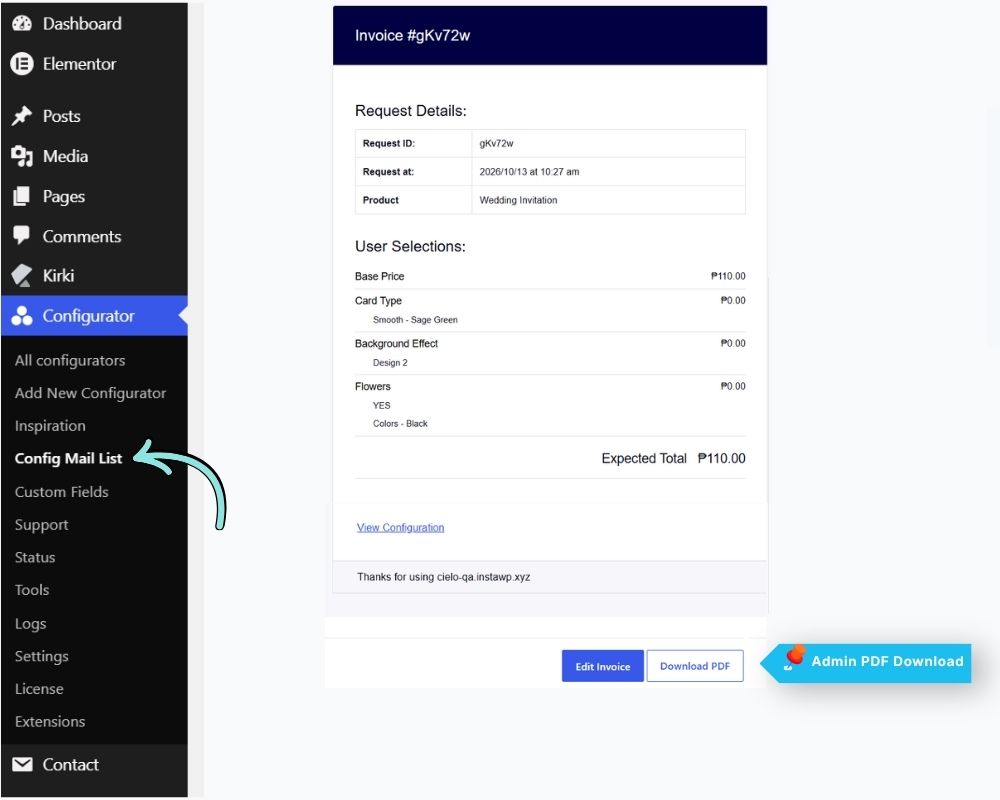
Shop owners can download a PDF copy of any quote request directly from the WordPress admin dashboard.
To download a PDF:
Navigate to Configurator → Config Mail List.
Open the desired quote request.
Click Download PDF to download the request as a PDF file.
6. PDF Download Using a Shorcode
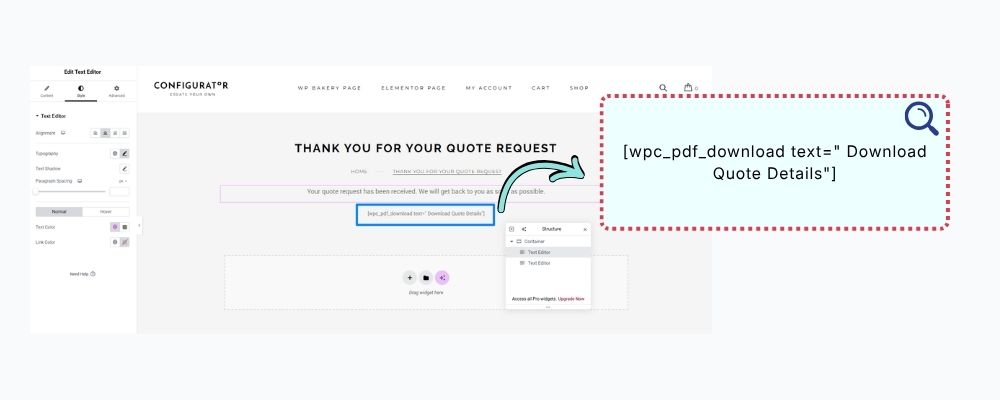
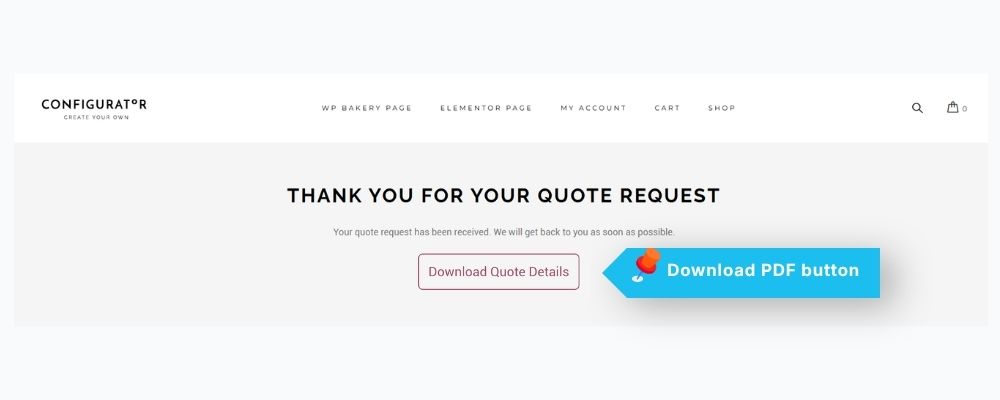
Place the [wpc_pdf_download] shortcode on the Get Quote greetings (thank-you) page to display a Download PDF button after the customer submits a quote request.
Visibility: The button appears only when the visitor arrives via the quote submission redirect, which includes the request ID and a security token. Otherwise, the shortcode renders nothing, making it safe to use on a public page.
Requirement: A greetings page must be configured in the plugin settings.
Optional attribute: Use text="..." to customize the button text.
7. PDF Text Strings and Document Heading Settings
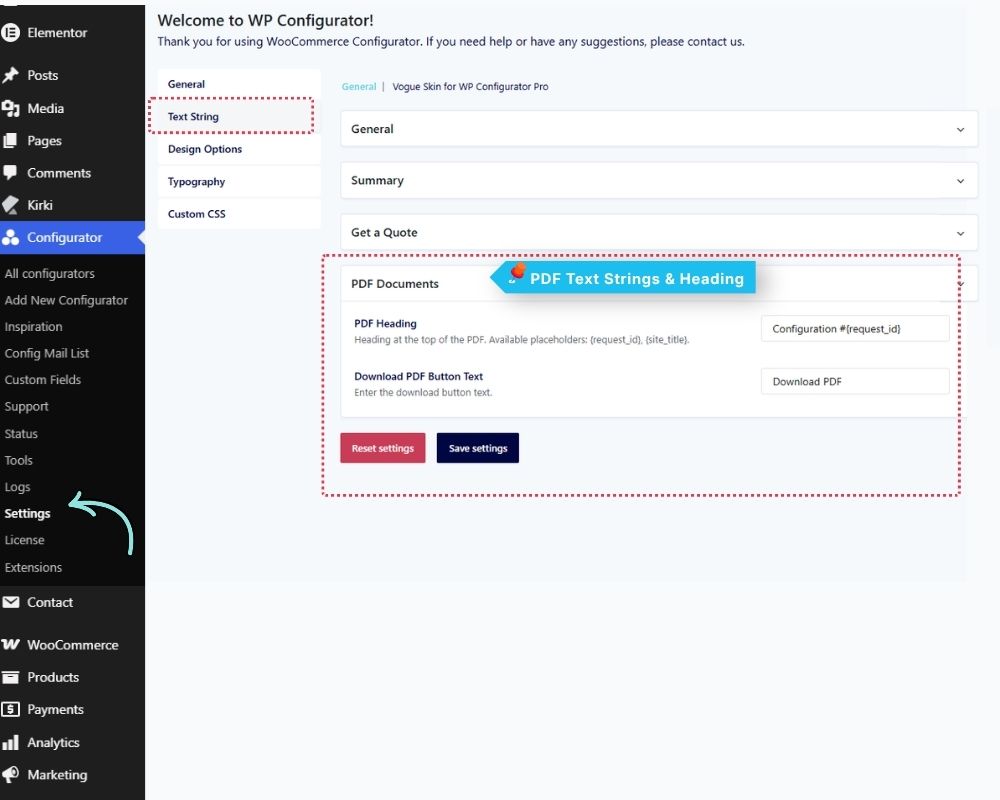
Navigate to Configurator → Settings → Text Strings to customize the text displayed in PDF download elements and the PDF document heading.
Download PDF Button Text: Sets the button text used in the email, the admin download button, and the [wpc_pdf_download] shortcode.
Document Heading: Sets the title displayed in the generated PDF. It supports the {request_id} and {site_title} placeholders.
Note: The floating download icon’s tooltip is not driven by this setting. It always displays the translated text “Download PDF.” This is a plugin limitation, not a documentation error. The code must be updated if this tooltip needs to be customizable through the setting.
8. PDF Download Rate Limit
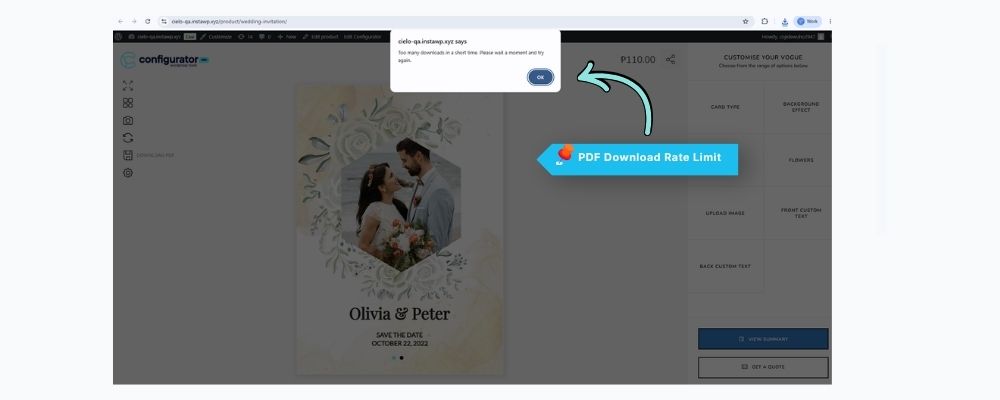
The configurator limits each visitor to 10 PDF downloads per minute. If the limit is exceeded, the visitor will see the following message:
“Too many downloads in a short time. Please wait a moment and try again.“
Important: If the website is behind a reverse proxy or load balancer that hides visitors’ IP addresses, all visitors may share the same download limit.
Developer Note: Developers can adjust the limit using the wpc_pdf_rate_limit filter. Setting the value to 0 disables the rate limit.
Conclusion
The Download PDF feature allows customers to save and review their product configurations while making it easier to share configuration details through quote requests and customer emails. Enable the PDF Documents setting and display the Download PDF icon to make this functionality available.