
Overview
WP Configurator Pro allows you to customize the email templates used in your store. This feature is especially effective in the Request a Quote and Contact Form end process only. To ensure your changes are update-safe, you should copy the templates into your child theme and edit them there.
Note: This template edit will cover for Request a Quote and Contact Form
1. Create a Child Theme
Skip this step if you already have a child theme.
A child theme ensures your customizations are safe from being overwritten when the parent theme is updated.
You have two options to create one:
Option A: Manual Creation
- From your WordPress dashboard, go to:
Appearance → Theme File Editor → Select Child Theme (if available)
(Or create a child theme manually in/wp-content/themes/) - Ensure the child theme is activated.
Option B: Use a Plugin (Recommended for Beginners)
- Install and activate the Child Theme Configurator plugin from the WordPress Plugin Directory.
- Follow the plugin wizard to create your child theme in just a few clicks.
Once your child theme is ready and active, proceed with creating the override file.
2. Locate Email Template
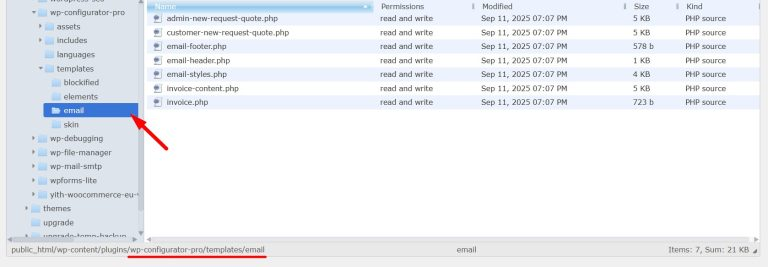
The email templates used by WP Configurator Pro are stored inside the plugin.
Template directory:
/wp-content/plugins/wp-configurator-pro/templates/email
Copy/Download the following template:
- email-styles.php → Defines the styling (colors, fonts, etc.) used in emails.
- customer-new-request-quote.php → Template for the new request quote email sent to customers.
3. Copy Templates to Child Theme
You need to create a folder inside your child theme to place the copied template and override the email template to customize it.
- Create the Override Directory
Inside your child theme, create the following folder:/wp-content/themes/your-child-theme/configurator/email/ - Copy the Template Files
Copy the following files from:/wp-content/plugins/wp-configurator-pro/templates/email/
into:/wp-content/themes/your-child-theme/configurator/email/Files to copy:email-styles.php
customer-new-request-quote.php
Once copied, WordPress will automatically use the templates from your child theme. - Navigate to:
/wp-content/themes/your-child-theme/
4. Edit the Templates
- Open the copied template file in a code editor.
- Make your modifications.
- Save changes.
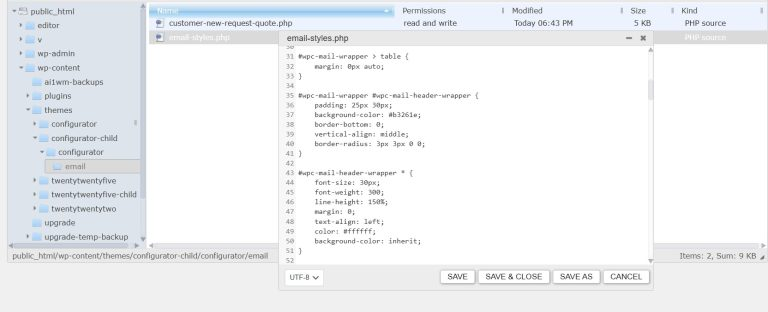
Editing Email Styles – To customize the look and feel of all emails:
- Edit email-styles.php in your child theme.
- You can adjust CSS for fonts, colors, spacing, etc.
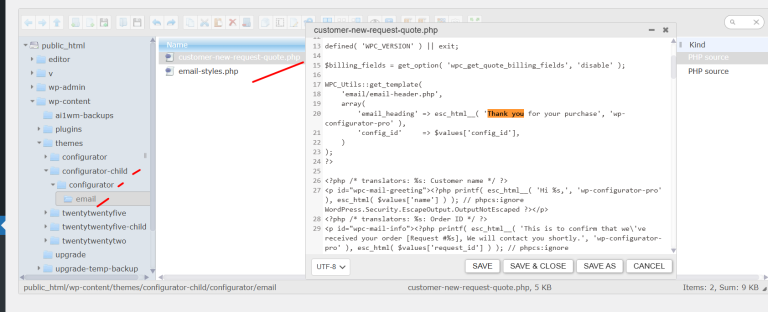
Editing Customer Request Quote Email – To change the content of the quote request email
- Open customer-new-request-quote.php.
- Modify the text, headings and other content as needed.
Important Notes
- Always back up your site before editing templates.
- Use a child theme. Do not edit files directly in the plugin, as updates will overwrite changes.