
Overview
WP Configurator Pro can be integrated with YITH Request a Quote for WooCommerce Premium to create a quote-based shopping experience.
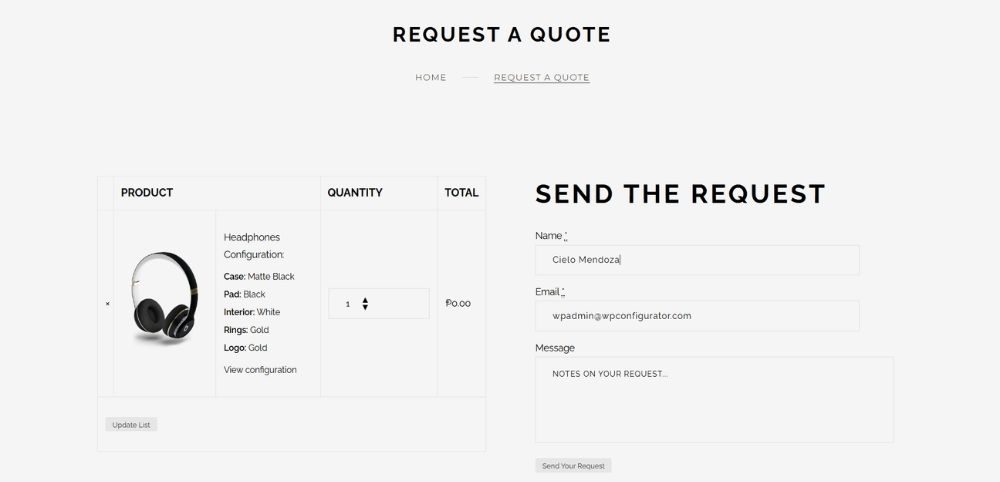
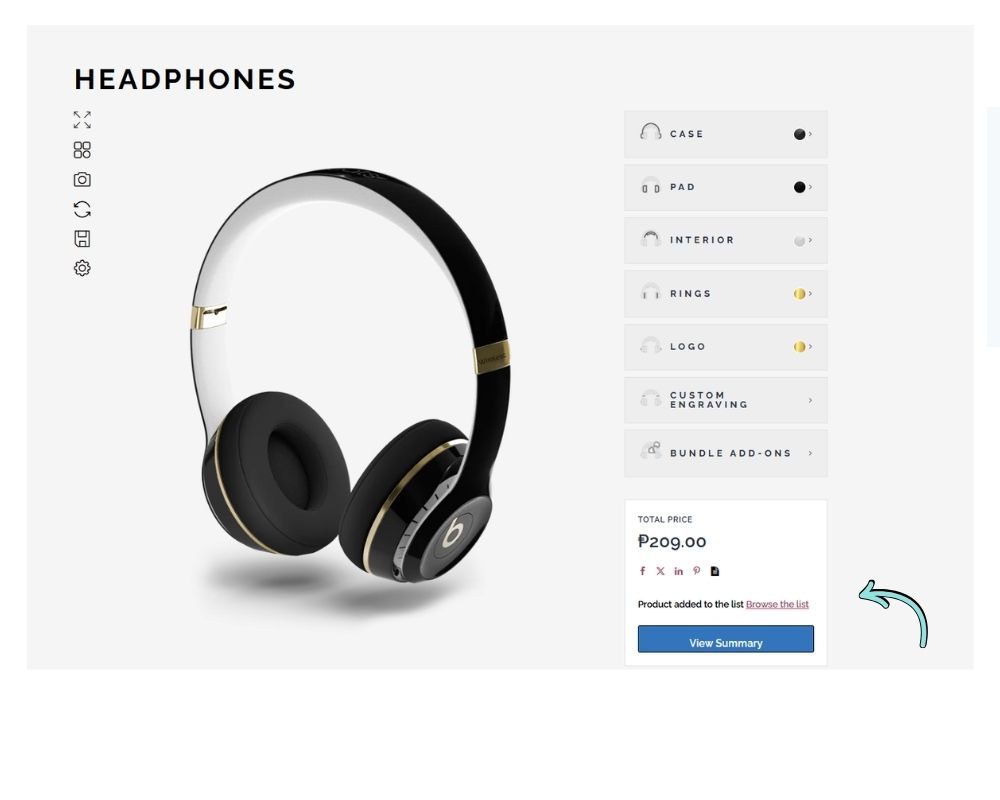
Instead of immediately purchasing a configured product, customers can add their configured products to a quote basket. They can then continue browsing the website, configure and add additional products, and finally submit all selected products as a single quote request.
This is useful for businesses that need to review product configurations, quantities, pricing, or other requirements before providing a final quotation.
How the integration works
This setup uses three components:
- WP Configurator Pro – Allows customers to configure products.
- YITH Request a Quote for WooCommerce Premium — Provides the quote basket and quote request functionality.
- YITH Quote and Component Quantity for WP Configurator Pro — Bridges WP Configurator Pro and YITH Request a Quote, allowing configured products and their component quantities to be passed into the quote basket.
The resulting customer flow is:
Configure product → Add to quote basket → Continue shopping → Configure more products → Submit quote
Note: This guide assumes that all three plugins are already installed and activated on your website.
Setting up the workflow
1. Link the Product to the Configurator
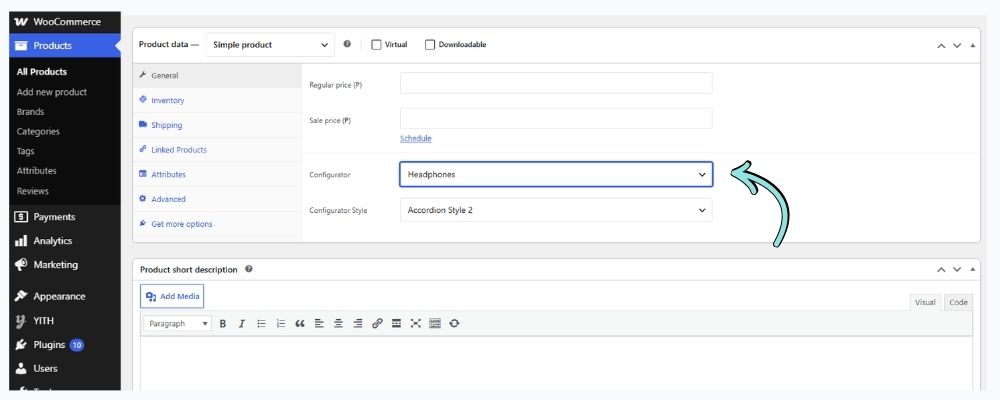
First, make sure the WooCommerce product you want customers to configure is linked to your WP Configurator Pro configurator.
Go to:
WordPress Dashboard → Products → Edit the Product
Open the WooCommerce product you want to use with the configurator.
In the product’s WP Configurator Pro settings, select or assign the appropriate configurator. Save or update the product.
Once this is configured, the product should display the configurator on the front end, allowing customers to customize it before adding it to their quote basket.
2. Ensure the Configurator Uses the Cart/Quote Form
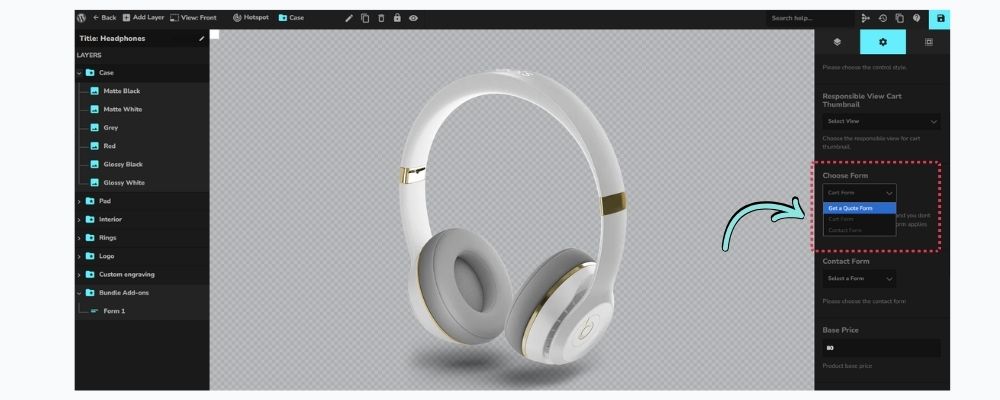
Next, set the configurator’s form to Cart Form or Quote Form. Contact Form is not supported and keeps WP Configurator’s contact form.
Go to the global settings for the configurator you are using and make sure its Cart or Quote Form option is enabled/selected.
After making the required change, save the configurator.
3. Check the Request a Quote Page
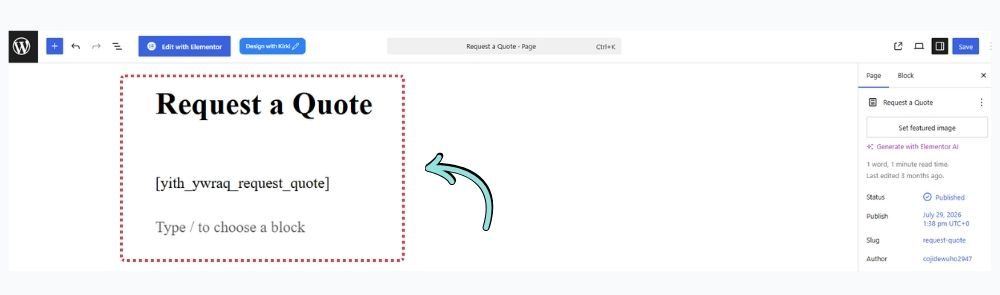
When you activate the YITH Request a Quote for WooCommerce Premium, it automatically creates a Request a Quote page with the request-quote slug. The page already contains the required shortcode and is automatically selected in the plugin settings.
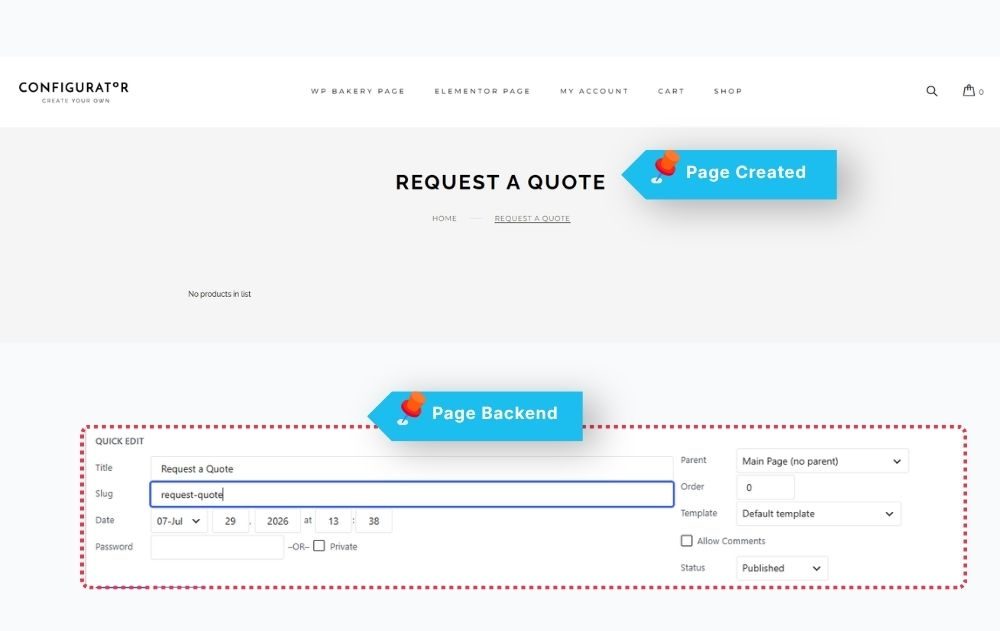
First, check whether the page exists and is working correctly. You usually don’t need to create a new one.
If the page was deleted or you want to use a different page:
- Go to WordPress Dashboard → Pages → Add New.
- Create a page titled Request a Quote or another suitable name.
- Add the following shortcode to the page content: [yith_ywraq_request_quote]
- Publish the page.
- Go to the YITH Request a Quote plugin settings and select the new page as the Request a Quote page.
Your page will serve as the customer’s quote basket, displaying the products they’ve added and allowing them to proceed with their quote request.
4. Set the Quote Page in YITH Request a Quote
Now tell YITH Request a Quote which page should be used as the quote page.
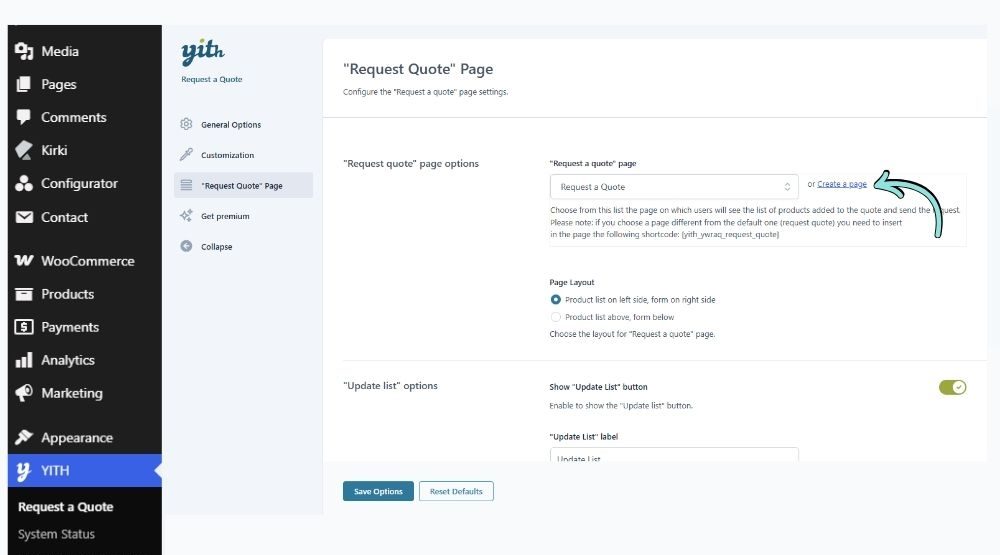
Go to: WordPress Dashboard → YITH → Request a Quote → “Request Quote” Page → Page Options → “Request a quote” page.
Select the Request a Quote page created in the previous step.
Save the settings.
5. Allow One Configuration per Product
YITH Request a Quote identifies products in the quote list. If a customer adds the same product again with a different configuration, YITH may display an “already in the list” message instead of adding it as a separate quote item.
Keep this behavior in mind when setting up your quote workflow, especially if customers need to request quotes for multiple configurations of the same product.
6. Set a Regular Product Price
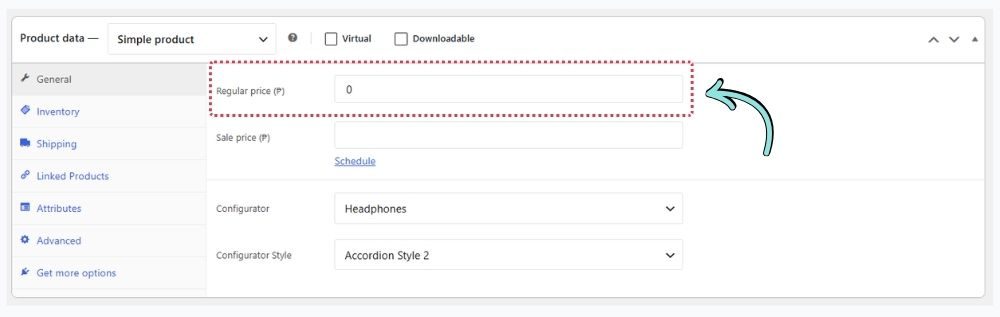
Make sure each configurable WooCommerce product has a regular price set. A price of 0 is acceptable if you don’t want to charge customers directly for the product.
If the regular price is missing, WP Configurator may hide the entire configurator form area, including the button customers need to interact with it.
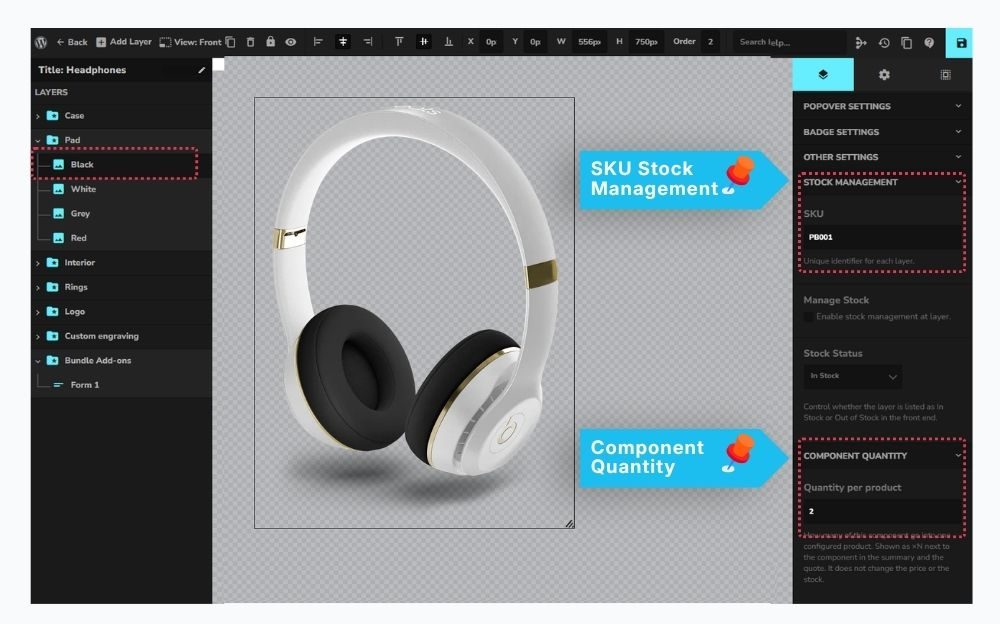
7. Set Component Quantities and SKUs
If your quote workflow requires component quantities and SKUs, configure these settings for each relevant layer in the WP Configurator editor.
- Component Quantity: Open the layer’s Component Quantity → Quantity per product panel and enter the required quantity.
- SKU: Open the layer’s Stock Management panel and enter the SKU. Make sure the required Stock Management add-on is active.
Repeat these steps for each layer that requires quantity or SKU information, then test the configurator to confirm the settings work as expected.
Once everything is configured, test the full quote workflow to ensure customers can customize products, add them to the quote basket, and submit their quote requests successfully.