
Explore Our Products with Admin Access!
Curious about our plugins? Want to experience them firsthand before making a purchase? You’re in luck! We offer limited-time admin access to our products and demos.
Step-by-Step Guide to Request Admin Access
If you’re having trouble setting up your demo, follow these steps:
1. Visit the Demo Portal
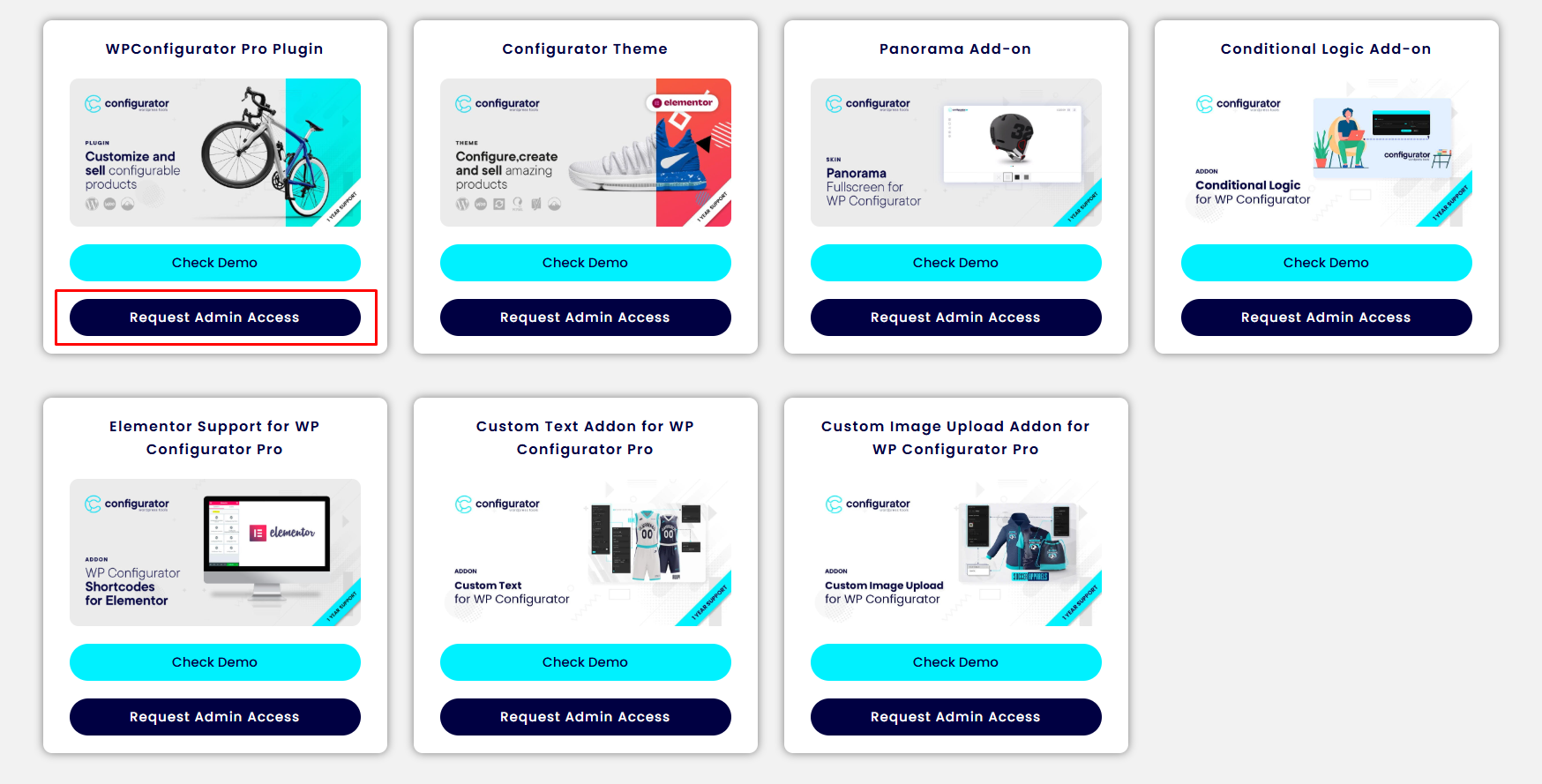
== Head to https://demos.wpconfigurator.com/ and select the product or demo you’d like to access.
2. Request Admin Access
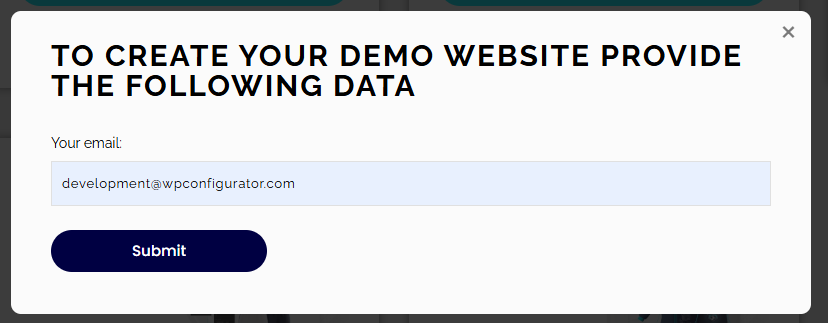
== Click the “Request Admin Access” button. A pop-up window will appear, prompting you to enter your email address.
3. Check for an Activation Notice
== Once you’ve submitted your email, an activation notice will be displayed. Check your email inbox for further instructions.

4. Confirm Your Account
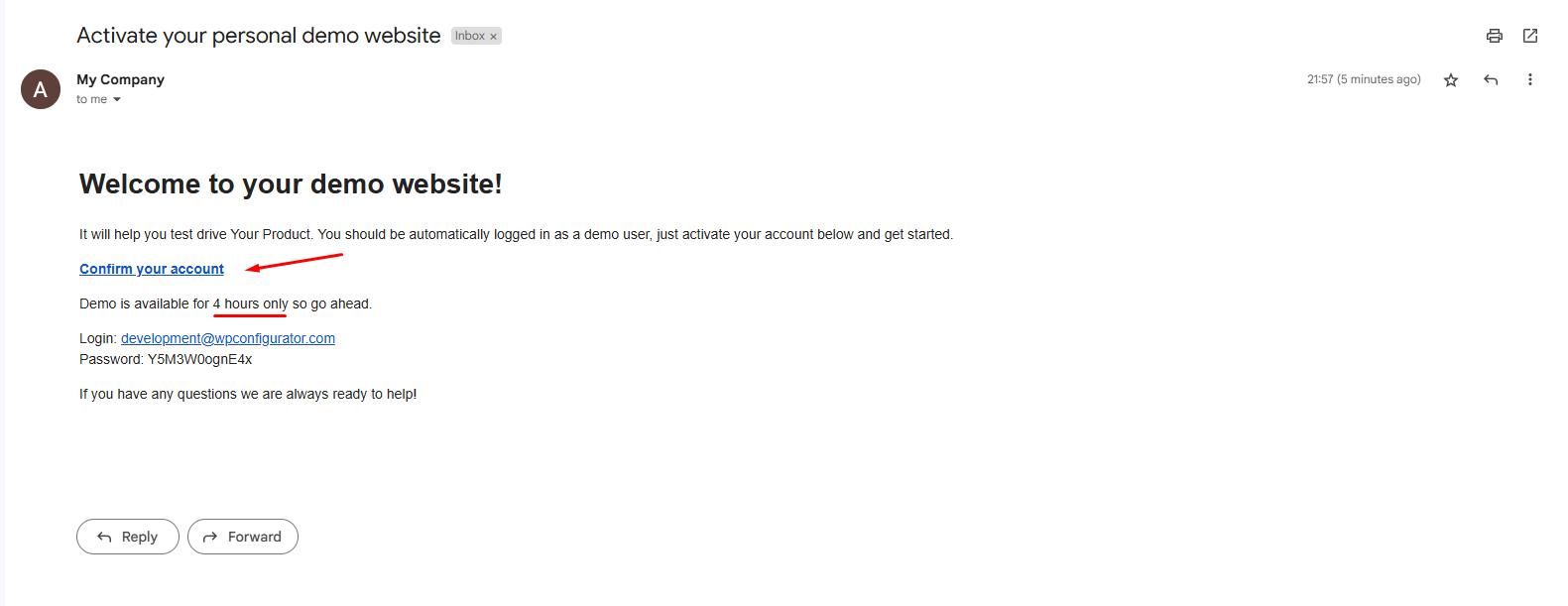
== Look for a welcome email containing your limited access account link. Click the “Confirm Your Account” link in the email to activate your access.
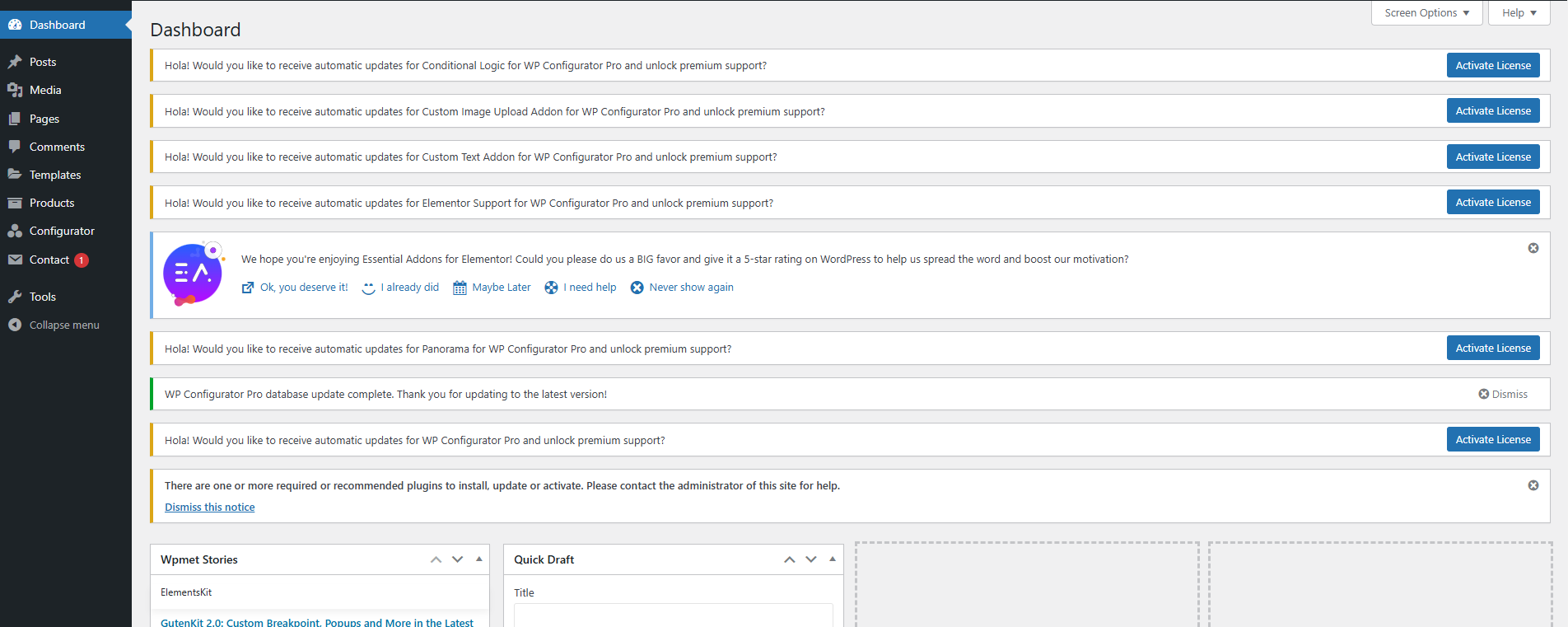
5. Access Your Dashboard
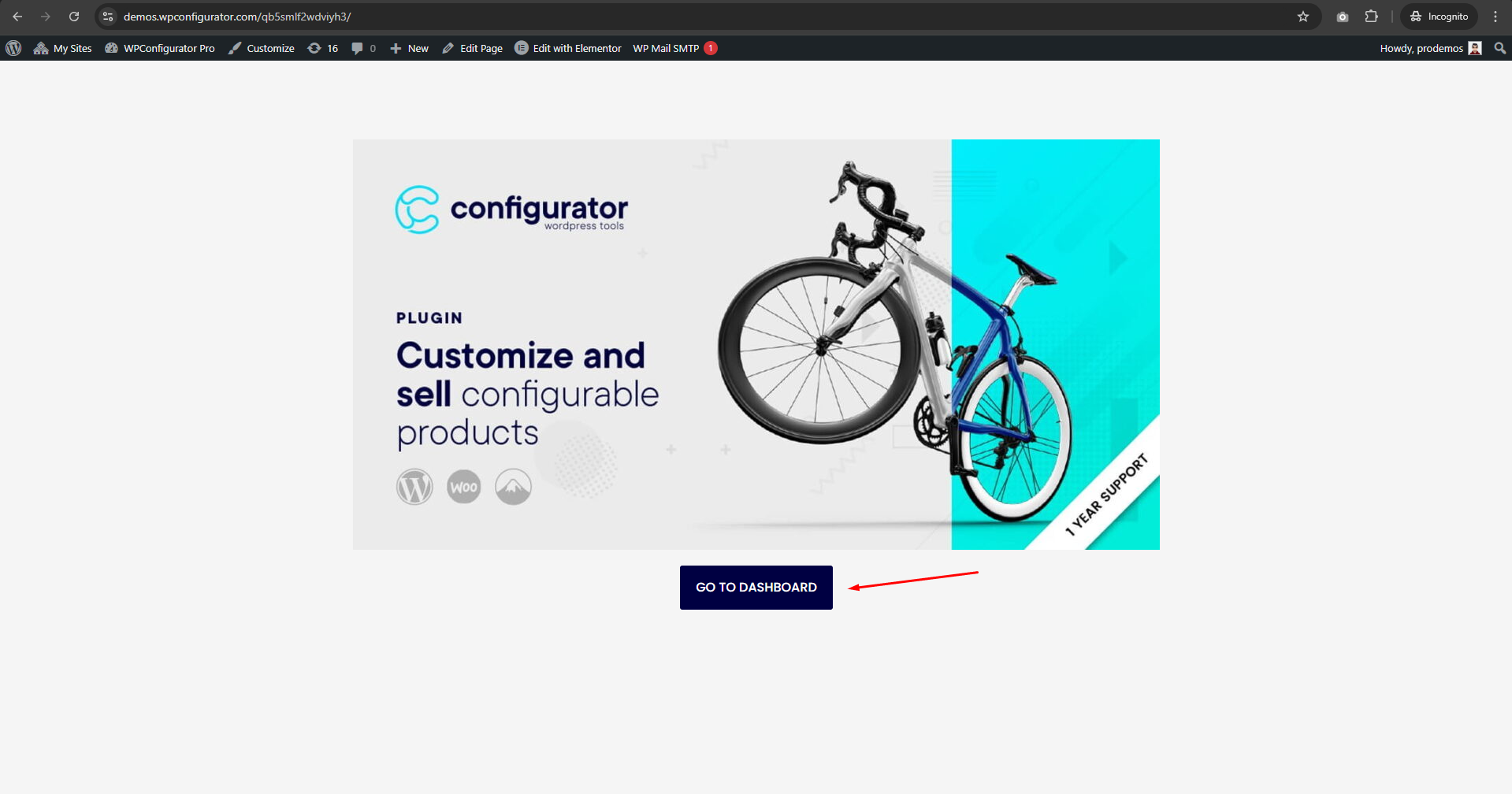
== After confirming your account, you’ll be redirected to the front page where you’ll see a “Go to Dashboard” button. Click it to open your dashboard.
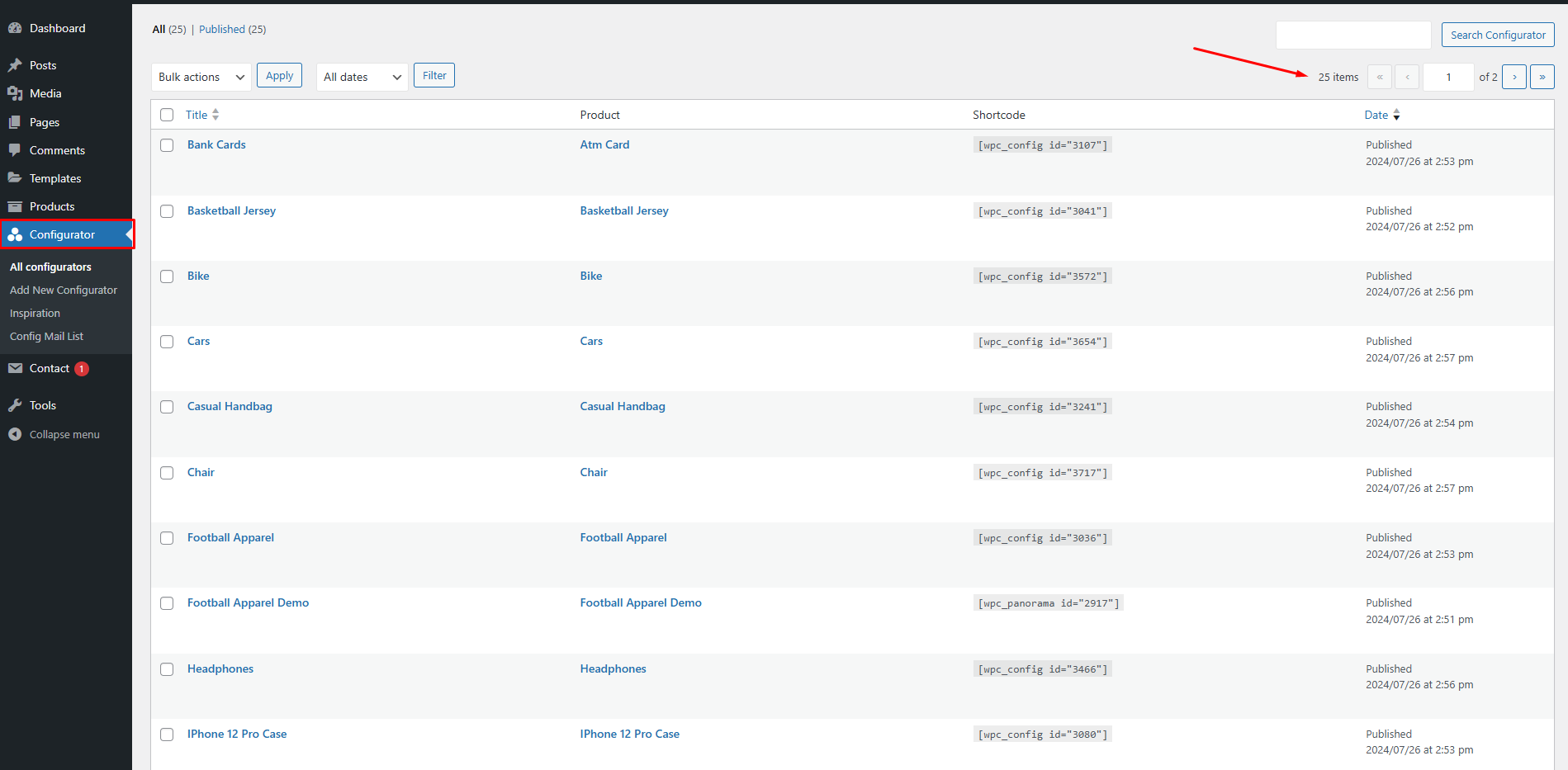
6. Explore Demos
== In your dashboard, navigate to Dashboard > Configurator to explore a variety of demos. Test out as many as you like!
Watch this step-by-step video on creating your very own demo!
Need Help?
If you encounter any issues, feel free to reach out to us: https://my.wpconfigurator.com/support/
We’re here to assist you!