
Creating and configuring your site’s menu is a key step in building a clear navigation experience for your furniture store. Below you’ll find step-by-step instructions to set up your menus using the Furniture Theme’s built-in locations and features.
Step 1: Access the Menu Settings
From your WordPress dashboard:
-
Navigate to Appearance → Menus.
-
Alternatively, you can go to Appearance → Customize → Menus for live-preview access.
The Furniture Theme supports editable menu locations so you can assign where each menu displays (for example, header or footer).
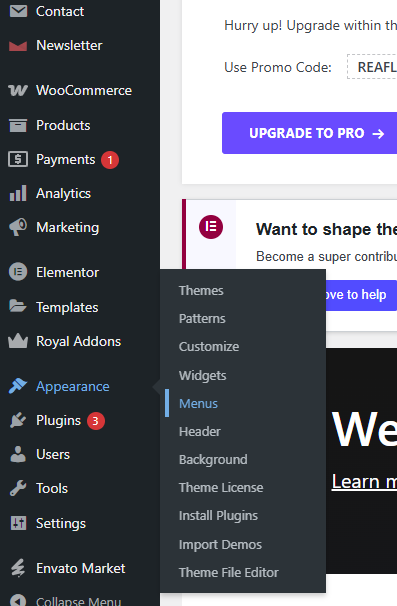
Step 2: Create or Select a Menu
-
In the Menus page, click “Create a new menu”.
-
Give your menu a name that describes its use (e.g., “Main Navigation”, “Footer Links”).
-
Click Create Menu.
-
On the Customizer side, you can click “Create New Menu”, name it, and select the display location (e.g., Header – Main, Footer – Bottom).

Step 3: Add Items to Your Menu
-
In the menu editing screen, expand sections like Pages, Posts, Custom Links, or Categories.
-
Check the items you want to include (for example: Home, Shop, About Us, Contact).
-
Click Add to Menu.
-
After adding items, you can drag and drop them to reorder or create sub-levels (for dropdowns) by indenting an item under another.
-
On the Customizer view, after addition, you can click Publish or Save to apply the changes.
Step 4: Assign the Menu to a Location
-
Within the menu editor, look for Menu Settings → Display location (or on Customizer: Menu location dropdown).
-
Choose the appropriate theme location (e.g., Main Menu, Footer Menu, Mobile Menu).
-
Click Save Menu (or in Customizer: Publish).
-
Then visit your site frontend to verify the menu appears in the correct location and functions as expected.
Step 5: Managing Dropdowns and Sub-Menus
-
To create a dropdown submenu: in the menu items list, drag an item slightly to the right below a parent item.
-
Ensure nested items appear correctly in the preview and work on mobile screens.
-
If using the Furniture Theme’s header layout with a mobile menu toggle, test both desktop and mobile views to confirm usability.
Step 6: Customizing Menu Appearance (Optional)
Though your Furniture Theme handles default styling, you may want to further tweak the look of your menus:
-
Go to Appearance → Customize → Header Options, then check Dropdown Menu Style or similar settings available in the theme.
-
Use Appearance → Customize → Additional CSS to apply custom CSS for menus (e.g., hover effects, spacing, typography).