
The Advance Typography settings allow you to adjust specific font styles for different sections of your website such as the title bar, blog, single blog, sidebar, and footer. This gives you more detailed control over how text elements appear across various areas of your theme.
Accessing Advance Typography Settings
Navigate to Appearance → Customize → Advance Typography.
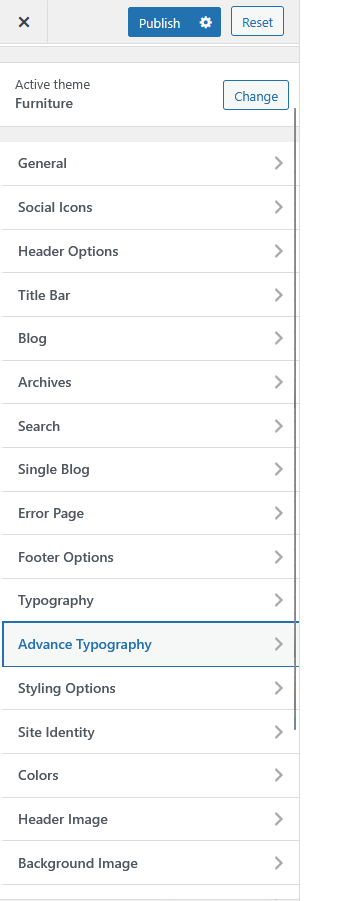
Advance Typography Panel
In this section, you’ll find options for:
-
General
-
Title Bar
-
Blog
-
Single Blog
-
Sidebar
-
Footer
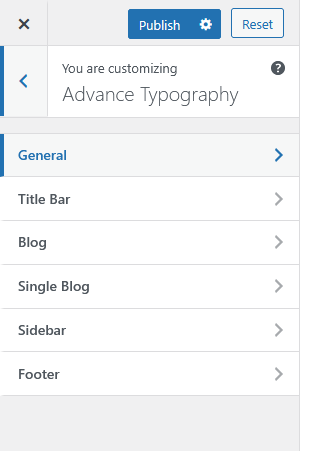
General Typography Settings
In the General subsection, you can enable or disable typography customization for global use across the site.
Option:
-
General Font Settings – Toggle Yes to activate advanced typography or No to disable it.
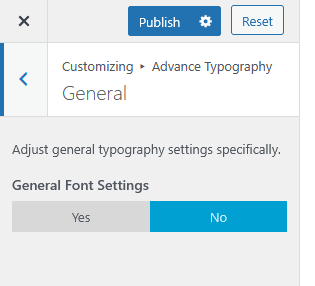
Subsection Settings (General for All)
Each subsection under Advance Typography (such as Title Bar, Blog, Single Blog, Sidebar, and Footer) provides similar customization controls.
You can typically adjust the following:
-
Font Family – Choose from a variety of fonts to match your site’s branding.
-
Font Variant / Weight – Select different font styles (e.g., Regular, Bold, Italic).
-
Font Size – Adjust text size for readability and aesthetics.
-
Line Height – Control the spacing between lines of text.
-
Letter Spacing – Modify the space between characters for better typography flow.
-
Text Transform – Set text to uppercase, lowercase, or capitalize.
-
Font Color – Define the text color for improved contrast and design consistency.