
The Header Options section allows you to configure and customize your site’s header appearance and behavior. You can adjust the layout, background style, menu behavior, and icons displayed in the header.
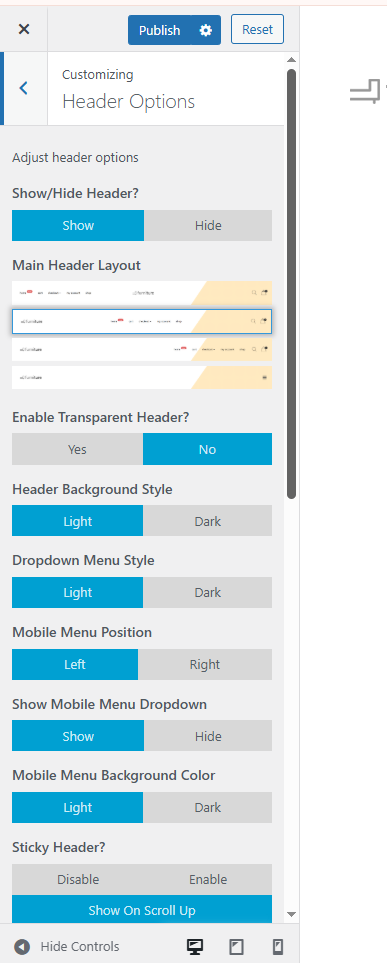
1. Show/Hide Header
-
Show: Displays the header section on your website.
-
Hide: Hides the header completely from all pages.
2. Main Header Layout
Choose from available header layout designs.
Each layout preview shows different placements for the logo, navigation menu, and icons.
3. Enable Transparent Header
-
Yes: Makes the header background transparent. Ideal for hero banner or image-based sections.
-
No: Keeps a solid background color for the header.
4. Header Background Style
Choose between:
-
Light: Applies a light-colored header background.
-
Dark: Applies a dark-colored header background.
5. Dropdown Menu Style
Choose between:
-
Light: Light background for dropdown menus.
-
Dark: Dark background for dropdown menus.
6. Mobile Menu Position
Select where the mobile menu appears:
-
Left or Right
7. Show Mobile Menu Dropdown
-
Show: Displays dropdown menu items on mobile view.
-
Hide: Hides dropdowns on mobile.
8. Mobile Menu Background Color
Select whether the mobile menu background appears Light or Dark.
9. Sticky Header
Choose the behavior of the sticky header:
-
Disable: The header remains static.
-
Enable: The header stays visible when scrolling.
-
Show On Scroll Up: The header appears only when users scroll up.
10. Enable Sticky Header on Mobile Devices
-
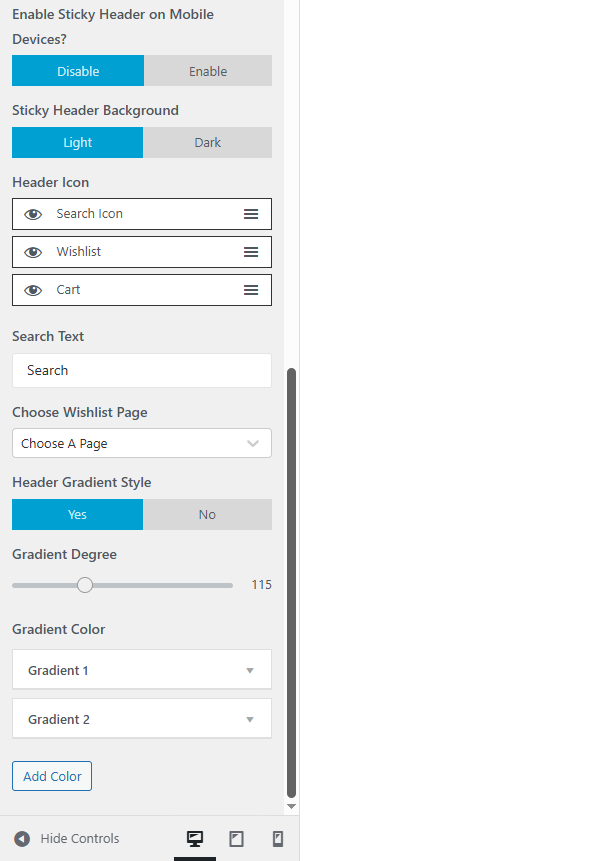
Enable: Activates sticky header behavior on mobile screens.
-
Disable: Deactivates sticky header for mobile.
11. Sticky Header Background
Choose the background color for your sticky header:
-
Light or Dark
12. Header Icons
You can choose which icons to show in your header (e.g., Search, Wishlist, Cart).
You can also reorder them by dragging the icon list.
13. Search Text
Customize the placeholder text for the search bar.
14. Choose Wishlist Page
Select the page to link your wishlist icon to.
15. Header Gradient Style
-
Yes: Enables gradient color in the header background.
-
No: Keeps a solid background color.
Gradient Degree
Adjusts the gradient angle.
Gradient Color
Select up to two gradient colors:
-
Gradient 1
-
Gradient 2
You can add more color stops using the Add Color button.