
This guide explains how to apply custom CSS styles to image layers in your WP Configurator product, targeting specific groups of layers.
1. Understanding the Selector
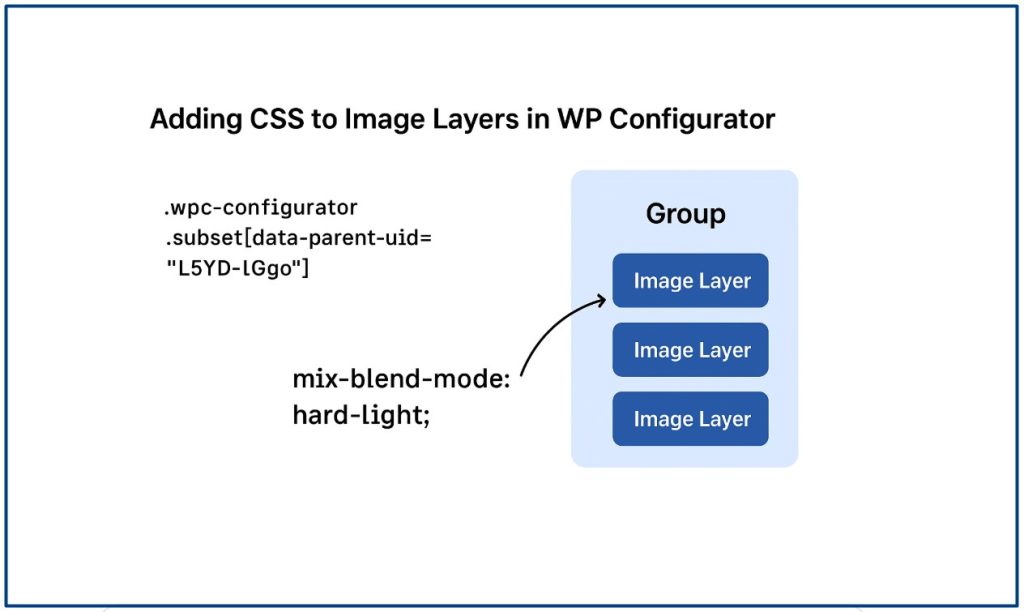
To target an image layer in a specific group, use the following CSS structure:
Explanation:
-
.wpc-configurator→ Ensures the style only applies inside the configurator. -
.subset→ Refers to an individual layer (image) within the product. -
[data-parent-uid="GROUP_ID"]→ Targets all layers that belong to a specific group. ReplaceGROUP_IDwith the actual group ID from your configurator. [data-uid="LAYER_ID"]→ Targets only the specific layer in a group. Replace LAYER_ID with the actual layer ID from your configurator..-
mix-blend-mode: hard-light;→ Example CSS property. You can replace it with any valid CSS (e.g.,opacity,filter,transform, etc.).
2. Finding the Group ID
Open specific Configurator page front end and locate the division you want to apply CSS.
-
Inspect the page and select the group containing the image layers you want to style.
-
Locate the UID (Unique ID) of the group. In the sample image below, it is
so6Y-4Fh5so we replace the value of the"GROUP_ID" - Copy the group id and replace to this CSS set below

⚠️ Tips: Do not use the layer ID—use the group ID to apply CSS to all layers within the group.
3. Applying CSS
-
Copy the selector from Step 1.
-
Replace
GROUP_IDwith the actual group UID. -
Add your CSS to your WordPress theme:
- Or go to Appearance → Customize → Additional CSS
- Save then changes
Real-World Use Case: Guitar Customization With Wood + Color Finish Blending
One of our clients recently approached us with a unique requirement for their online custom guitar builder. Their product allows customers to design their own guitar by choosing:
-
The wood type for the guitar body
-
The color finish
-
The intensity and richness of the finish over the natural wood grain
The challenge:
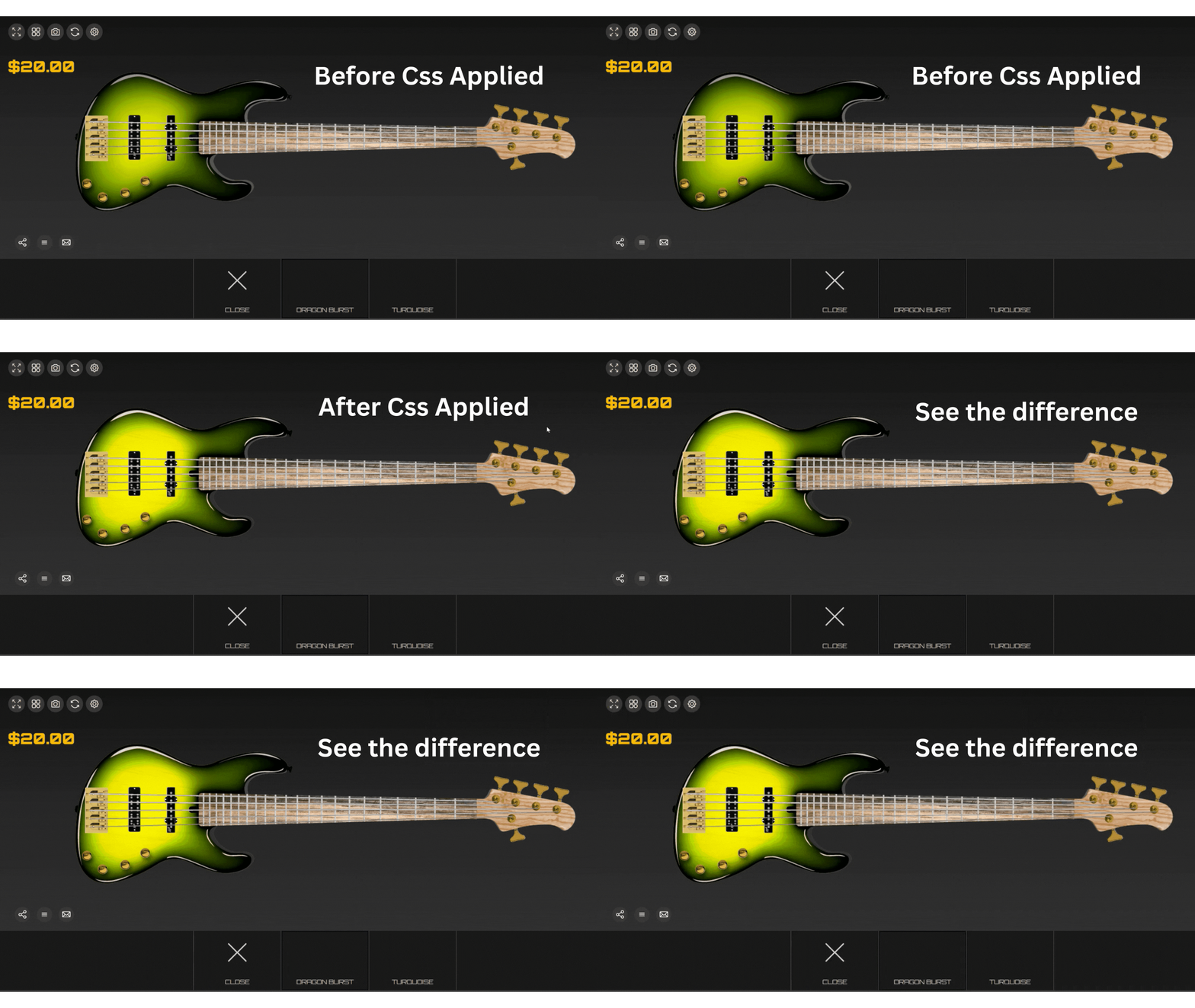
When customers selected a finish color, the color appeared too solid and completely covered the wood grain. What they needed was a blended visual effect, similar to how real guitar lacquer interacts with natural wood patterns.
To solve this, we suggested applying custom CSS directly on the finish-color image layer using:
This blend mode creates an authentic “wood + color lacquer” effect, allowing the wood grain to remain visible while the color finish shines through—very close to what a real instrument looks like.
The Result
Using the CSS hook and the blend mode, the client achieved:
-
More realistic product previews
-
A better customer experience
-
Higher accuracy in wood + finish color representation
The same approach can be used for other industries that need texture + color blend effects, such as:
-
Custom furniture
-
Surfboards and skateboards
-
Automotive parts
-
Jewelry and accessories
Because this solution is fully CSS-based, it remains flexible, lightweight, and reusable for many product types.