
Configure Each Layer
For every layer you’ve created, Upload the image:
- Click on the layer to select it
- In the right panel, choose “Product Image” as layer type
- Upload a transparent PNG file
- The image appears in the preview
Set the display option:
- Color Swatch: Best for colors (choose the actual color)
- Text Label: Good for materials or descriptive options
- Icon: Advanced option for specific use cases
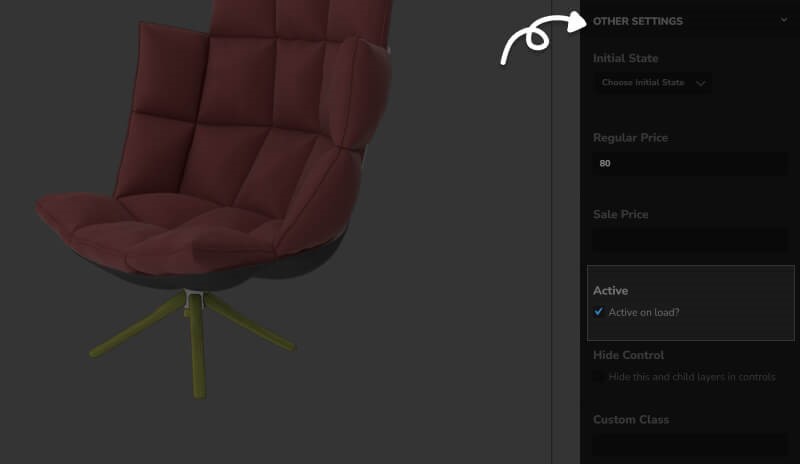
Add pricing (if applicable):
- Enter additional cost for premium options
- Leave blank if no extra charge
- Price gets added to base price automatically

Set Default Options
- For each group, choose one layer as Active on Load
- This ensures customers see a complete product immediately
- Only one active layer per group to avoid conflicts
Configure Global Settings
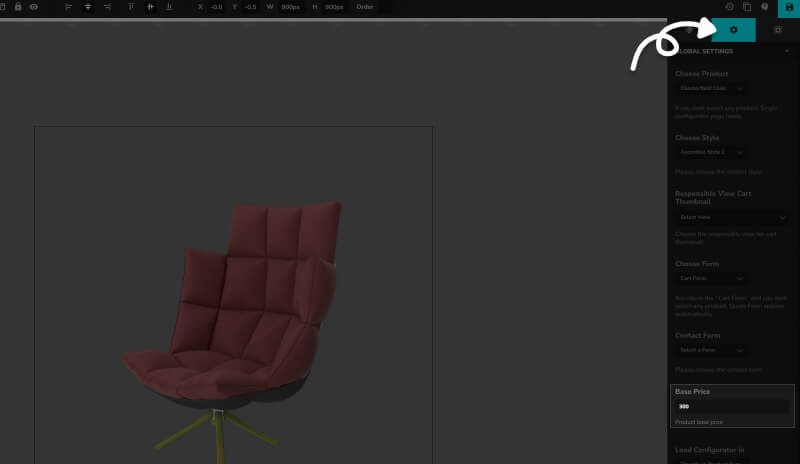
Base Price Setting :
- Click “Settings” in the top menu
- Enter your starting price (before any add-ons)
- This is what customers see before selecting options
Other Settings :
-
- Cart functionality or quote functionality
- Choose a layout style (skin)
- Update linked WooCommerce product etc.
Please see the complete tutorial for the full Configurator creation:
📚 WP Configurator Plugin – Layer Order Feature
The Layer Order feature in WP Configurator controls the stacking order of images (parts or layers) within a configurator product. This determines which image appears on top when multiple layers are displayed.
How It Works
Each layer in a part can be assigned a Layer Order value. This value is a simple number (e.g., 1, 10, 99) that tells the system how to stack the layers:
-
Higher values are rendered on top of lower ones.
-
Lower values go beneath higher ones.
For example:
-
A layer with order
20will appear above a layer with order10. -
If two layers have the same order value, their order will default to the sequence they are loaded in (not recommended).
🛠 Where to Set the Layer Order
- Go to WP Configurator > Configurator Products.
- Edit the product you want to modify.
- In the Configurator Editor panel:
- Click on an Image Layer.
- Each layer will have a Layer Order field.
- Enter a number to define its position in the stack.
