
This guide will help you export and import submissions from the Config Mail List in your WordPress dashboard. Follow the steps below to safely back up or transfer your data between websites.
Exporting Submissions
You can export your Config Mail List submissions directly from your WordPress admin panel.
Steps:
-
Go to your WordPress Dashboard.
-
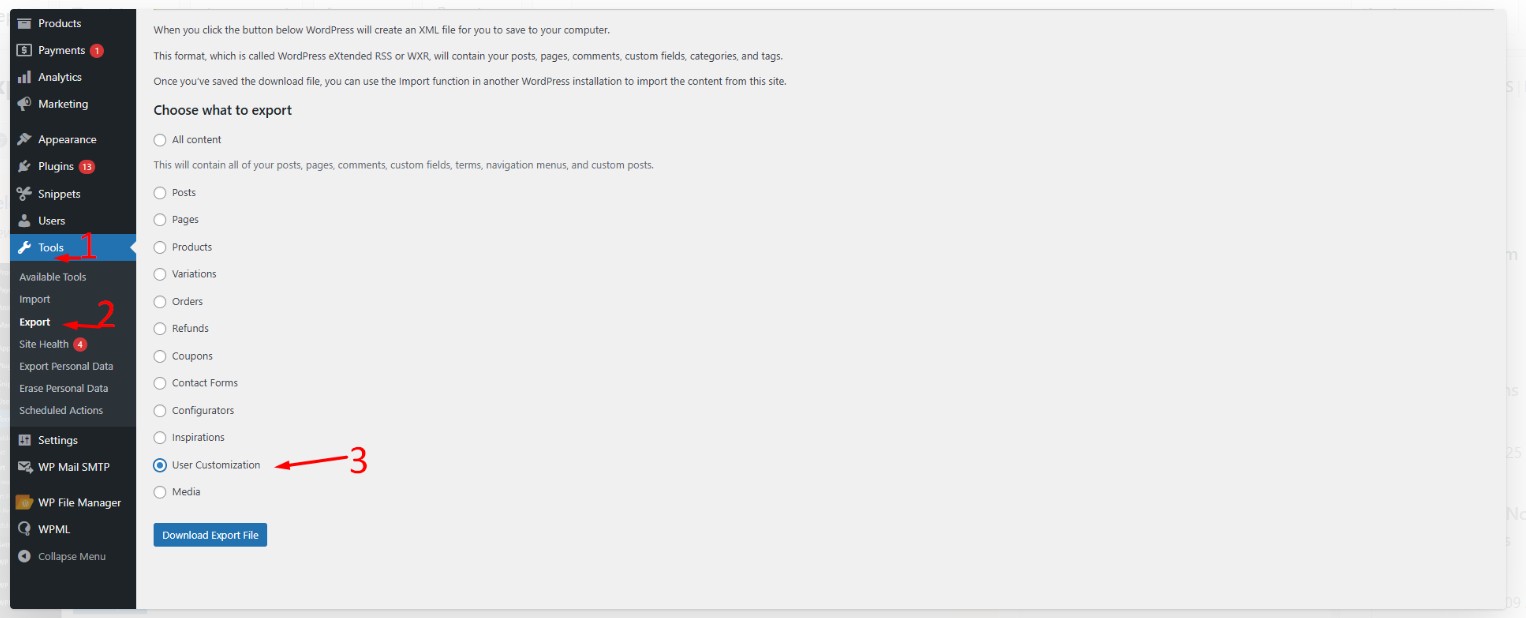
Navigate to Tools → Export.
-
Select User Customization from the list of available export options.
-
Click Download Export File.
This will generate and download an XML file containing your submission data.
Importing Submissions
To import your exported submissions back into the same site or to another WordPress site with the Configurator installed:
Steps:
-
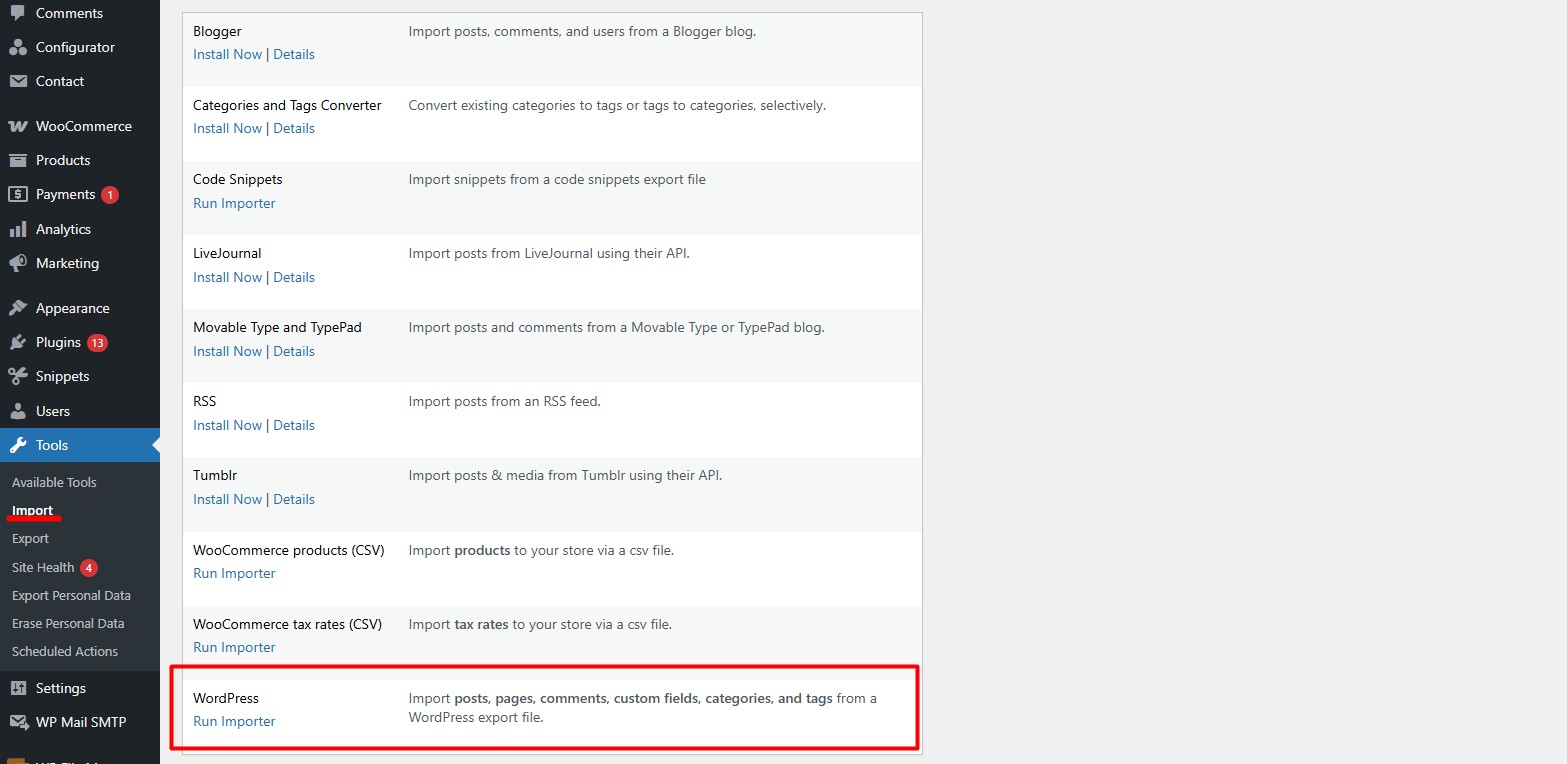
Go to Tools → Import in your WordPress dashboard.
-
Choose WordPress from the list of importers.
-
If not installed yet, click Install Now under the WordPress importer.
-
-
Once ready, click Run Importer.
-
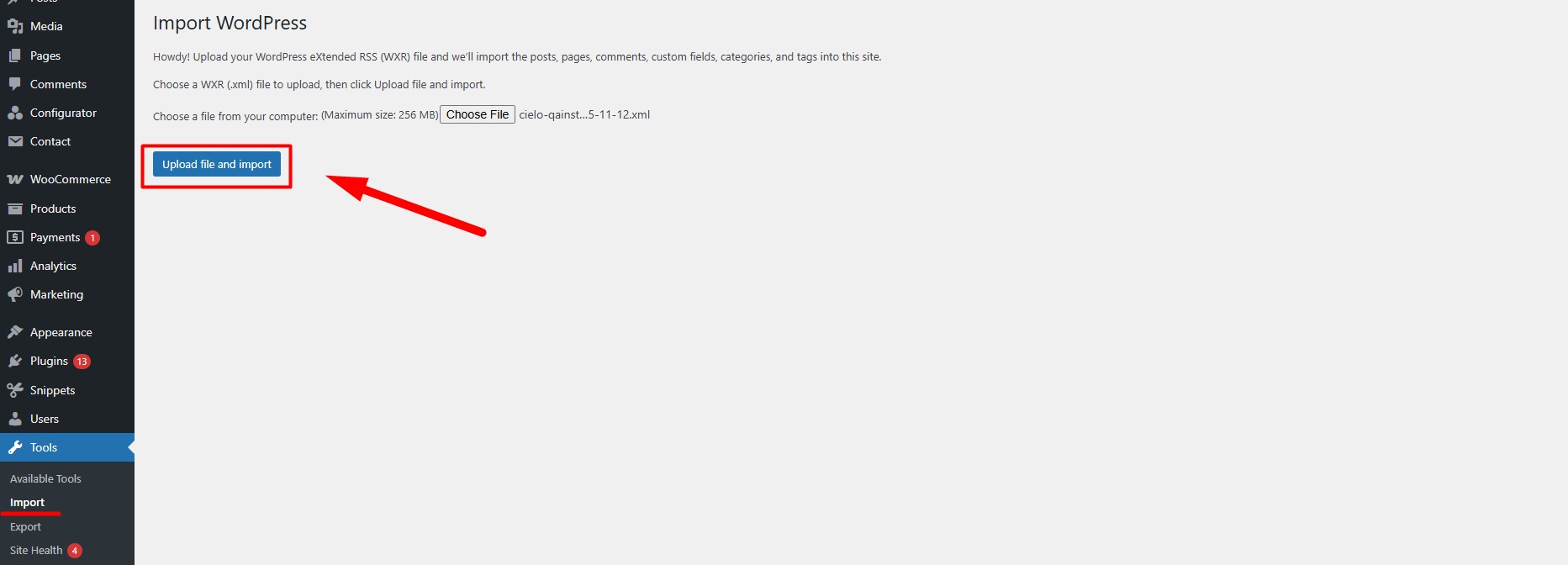
Upload the previously exported XML file.
-
Click Upload file and import to complete the process.
Uploading the XML File
During the import process, you’ll be prompted to upload your XML file.
Click Choose File, select the file you exported earlier, and then click Upload file and import.
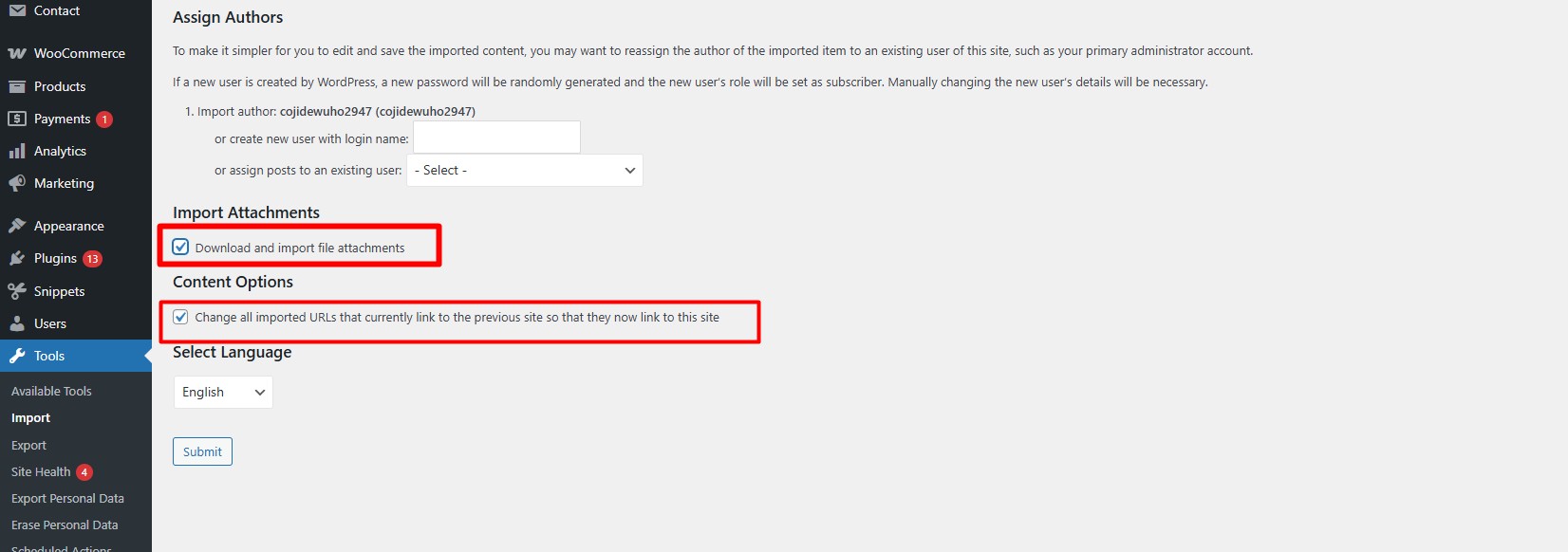
Important: Check the box labeled “Download and import file attachments” to include the associated media files.
That’s it!
Your Config Mail List submissions are now successfully imported. You should see the entries appear in your Config Mail List section as before.