
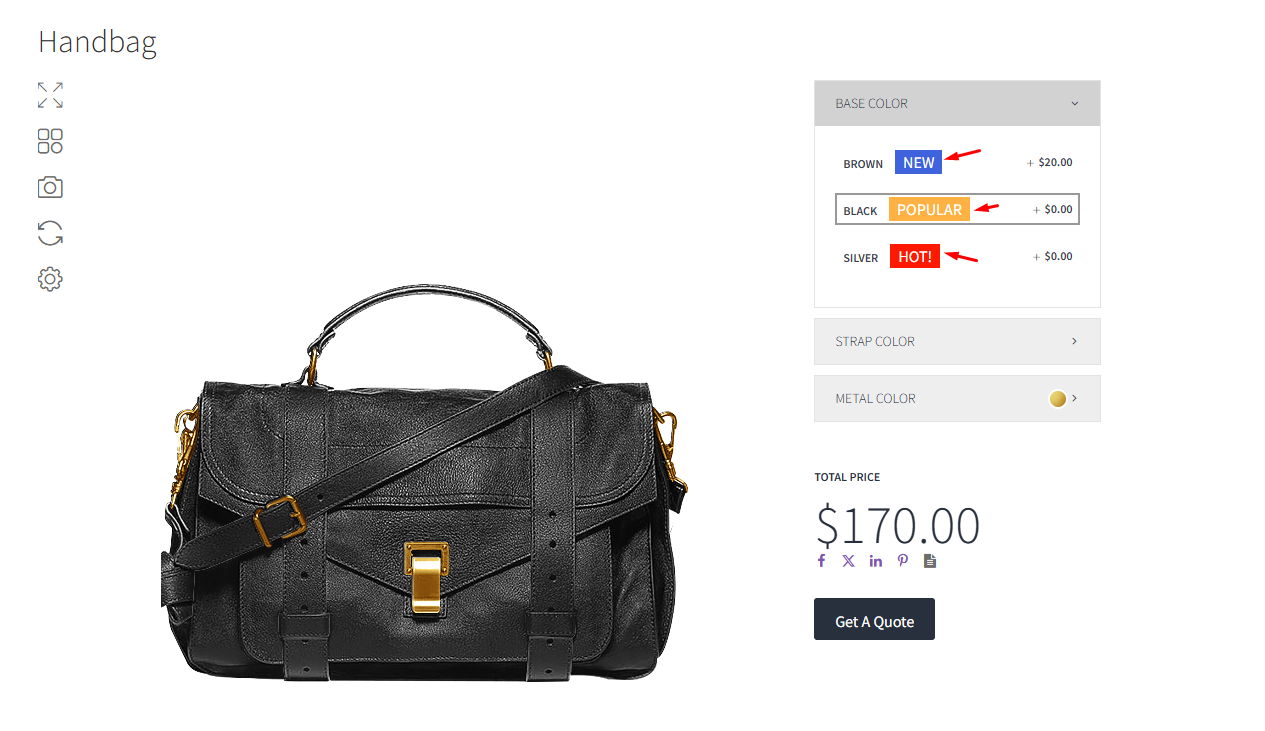
Badges are visual labels displayed next to option names on the front end, helping customers quickly identify featured or recommended choices.
Overview
The Badge feature allows you to:
- Highlight new or popular options
- Promote featured variations
- Draw attention to premium or limited selections
Badges are applied per layer option and are fully customizable in terms of text, size, spacing, colors, and styling.
How to Add a Badge to a Layer Option
Step 1: Open Your Configurator
- Go to WP Admin → WP Configurator → Configurators
- Open the configurator you want to edit
Step 2: Select a Layer Option
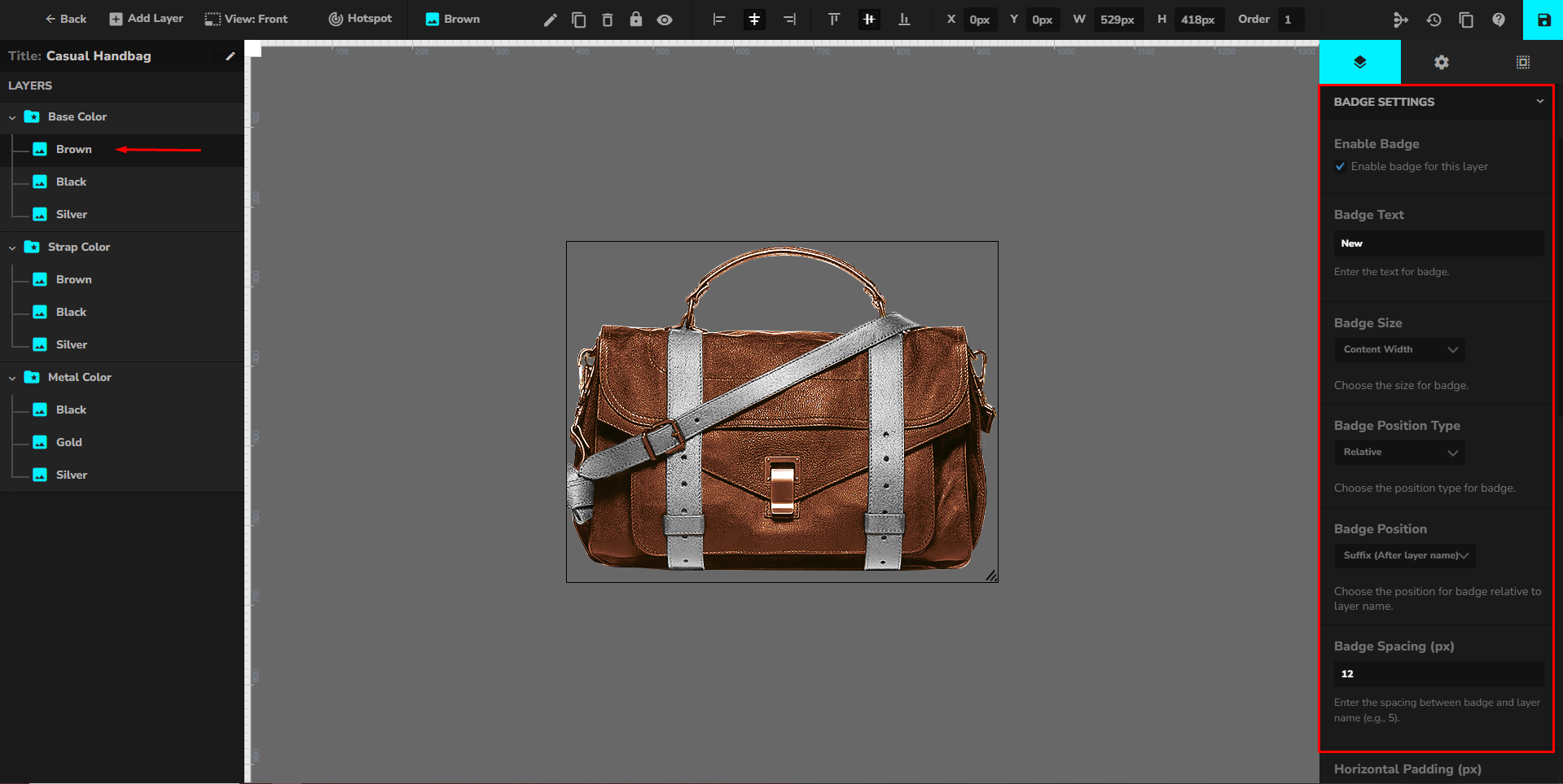
- In the Layers panel, expand a layer (e.g. Base Color)
- Click the specific option you want to highlight (e.g. Brown, Black, Silver)
Step 3: Enable the Badge
- On the right settings panel, open Badge Settings
- Enable “Enable badge for this layer”
- Enter the Badge Text (e.g.
New,Popular,Hot)
Once enabled, the badge will automatically appear next to the option name on the front end.
Badge Configuration Options
Badge Size
Choose how the badge width behaves:
- Content Width – The badge width adapts to the text content
- Full Width – The badge stretches to fill the available option width
Badge Position
Choose where the badge appears in relation to the option name:
- Prefix – Displays the badge before the option text
- Suffix – Displays the badge after the option text
Badge Spacing (px)
- Defines the space between the badge and the option text
- Example:
12
Padding Settings
- Horizontal Padding (px) – Space left and right inside the badge
- Vertical Padding (px) – Space top and bottom inside the badge
These settings help adjust badge readability and shape.
Border Radius (px)
- Controls how rounded the badge corners are
- Higher values create pill-shaped badges
Font Size (px)
- Adjusts the text size inside the badge
- Example:
14–16pxworks well for most designs
Colors
- Background Color – Sets the badge background
- Text Color – Sets the badge text color
Use contrasting colors to ensure visibility.
