
To configure dynamic range pricing for a product:
- Open your Configurator Product
- From your WordPress dashboard, go to Configurator Products.
- Edit the product you want to apply range pricing to.
- Add a Group Layer
- Inside the product configurator editor, click Add Group.
- Rename the group layer (e.g. Length Selector or Width Range).
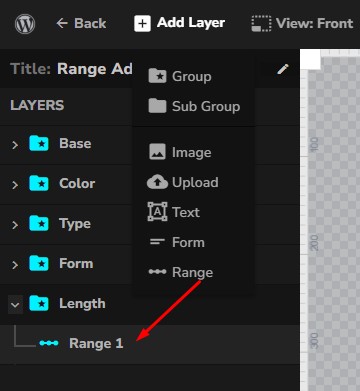
- Add a Range Layer
- Under the group layer, add a Range Layer.
- This is where you will define the pricing rules and measurement logic.
Range Layer Settings
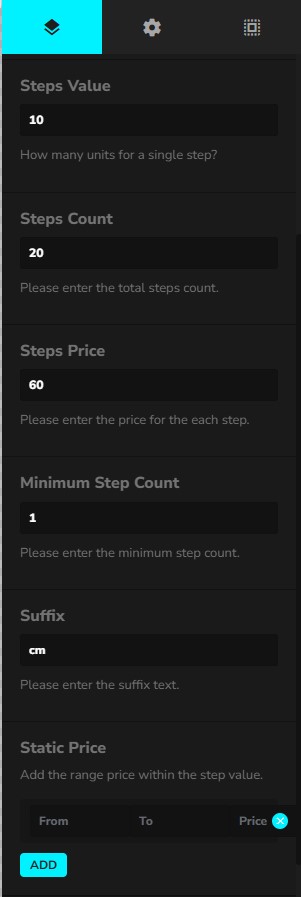
Steps Value
- Definition: How much each step represents.
- Example:
10 - If your product is measured in centimeters,
1 step = 10 cm.
Steps Count
- Definition: The total number of steps available.
- Example:
20 - With a Steps Value of
10 cm, the maximum range becomes:10 cm × 20 steps = 200 cm.
Steps Price
- Definition: The price per step.
- Example:
60 - If a customer selects 5 steps (50 cm), the total price will be:
5 × 60 = 300.
Minimum Step Count
- Definition: The minimum number of steps a customer can select.
- Example:
1 - Ensures customers cannot go below the minimum allowed.
- With
Steps Value = 10 cmandMinimum Step Count = 1, the smallest option available will be 10 cm.
Suffix
- Definition: A unit label shown to the customer (for display only).
- Example:
cm - Helps customers understand the measurement unit (cm, m, in, kg, etc.).
Static Price (Optional)
The Static Price feature lets you set a flat price for a specific range of steps, instead of multiplying by the per-step price.
- From / To: Define the step range (e.g. 1–5 steps, 6–10 steps).
- Price: The flat price applied when the customer selects a value within that range.
Example:
- Steps Value =
10 cm - Steps Price =
50 - Static Price = From
1To5→200
If the customer selects between 10 cm and 50 cm, instead of paying 50–250 (per step pricing), they will pay a flat 200.
This is especially useful for:
- Tiered pricing models (e.g. discounts for bulk purchases).
- Flat setup fees for certain ranges.
- Promotional pricing for specific measurement brackets.