
When you activate the Multi-Step Skin for WP Configurator Pro, a dedicated settings panel appears under Configurator → Settings → Multi-Step Skin for WP Configurator Pro. Here you can customize the skin’s look and behavior to fit your brand and product experience.
General Settings
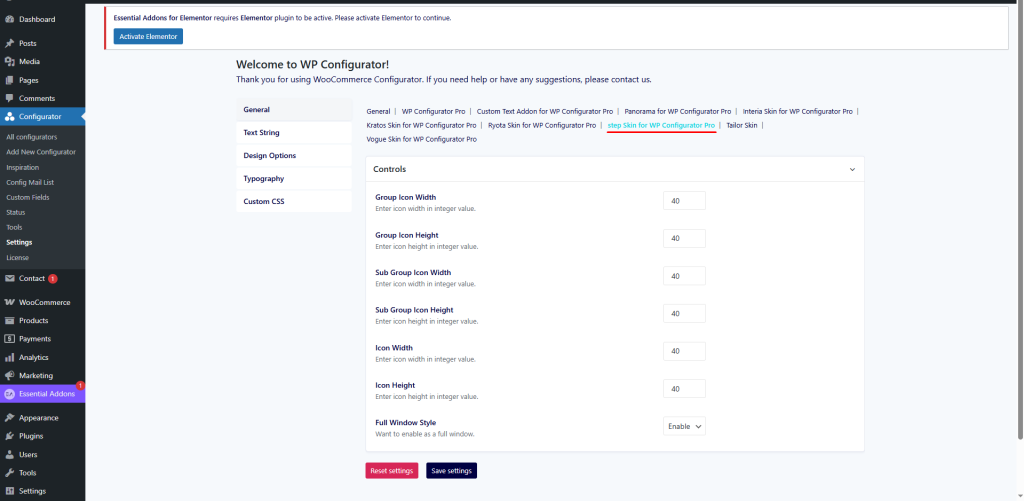
In this section, you can define the dimensions of your group and icon elements:
- Group Icon Width – Enter width in integer value (default: 40).
- Group Icon Height – Enter height in integer value (default: 40).
- Sub Group Icon Width – Width for sub-group icons (default: 40).
- Sub Group Icon Height – Height for sub-group icons (default: 40).
- Icon Width – General icon width (default: 40).
- Icon Height – General icon height (default: 40).
- Full Window Style – Option to enable the configurator in a full-window layout for immersive step-by-step experience.
Design Options
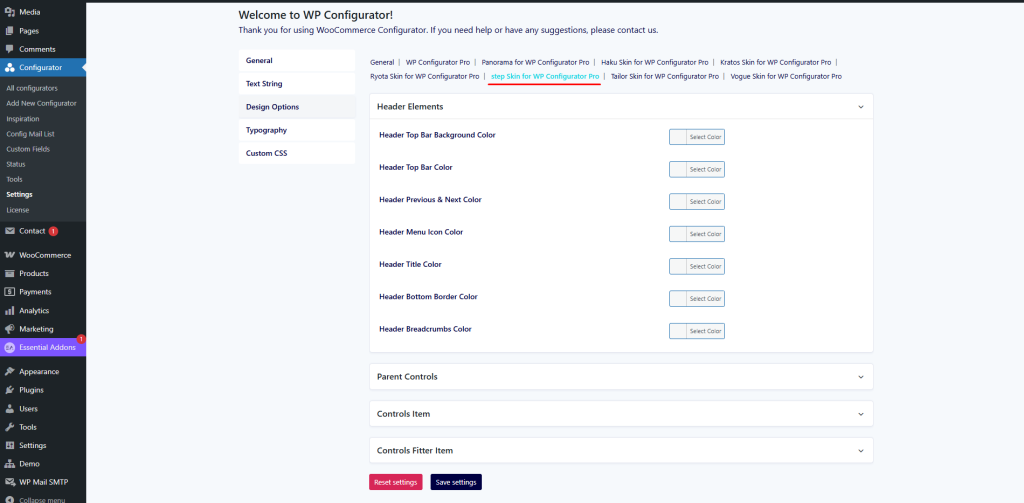
This section gives you full control over the look and feel of the Multi-Step Skin.
Header Elements
- Header Top Bar Background Color – Set the background color for the step header bar.
- Header Top Bar Color – Define the text color for the top bar.
- Header Previous & Next Color – Customize the navigation button colors for Previous and Next.
- Header Menu Icon Color – Set the color of menu icons.
- Header Title Color – Choose a color for the step title text.
- Header Bottom Border Color – Set the border color for the bottom divider in the header.
- Header Breadcrumbs Color – Define the color for breadcrumbs (helpful for multi-step navigation).
Parent Controls
Customize the container of parent controls for better step distinction.
Controls Item
- Define the size, style, and spacing of control items in the configurator.
Controls Filter Item
- Manage the filter item style for better product selection navigation.
Typography & Custom CSS
- Typography – Control fonts, weights, and sizes for text elements, matching your brand’s look.
- Custom CSS – Insert your own CSS code for advanced styling beyond the default options.