
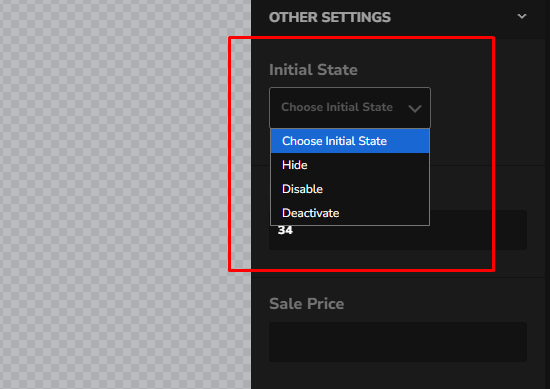
The Initial State determines how a layer appears when the configurator first loads.
If you want a layer to be hidden or disabled by default, you should configure it using Initial State.
Conditional Logic is not executed automatically when the page loads. It is only executed after the customer interacts with the configurator.
Why use Initial State?
Use Initial State whenever you want a layer to start in a hidden or disabled state.
For example:
- Hide a layer when the configurator first opens.
- Disable an option until another option is selected.
- Define the default appearance of the configurator before any customer interaction.
Once the customer interacts with the configurator, you can use Conditional Logic to change the layer’s state (such as showing or enabling it).
Where to find the Initial State option
- Open your configurator in the editor.
- Select the layer you want to configure.
- Expand Other Settings.
- Locate the Initial State dropdown.
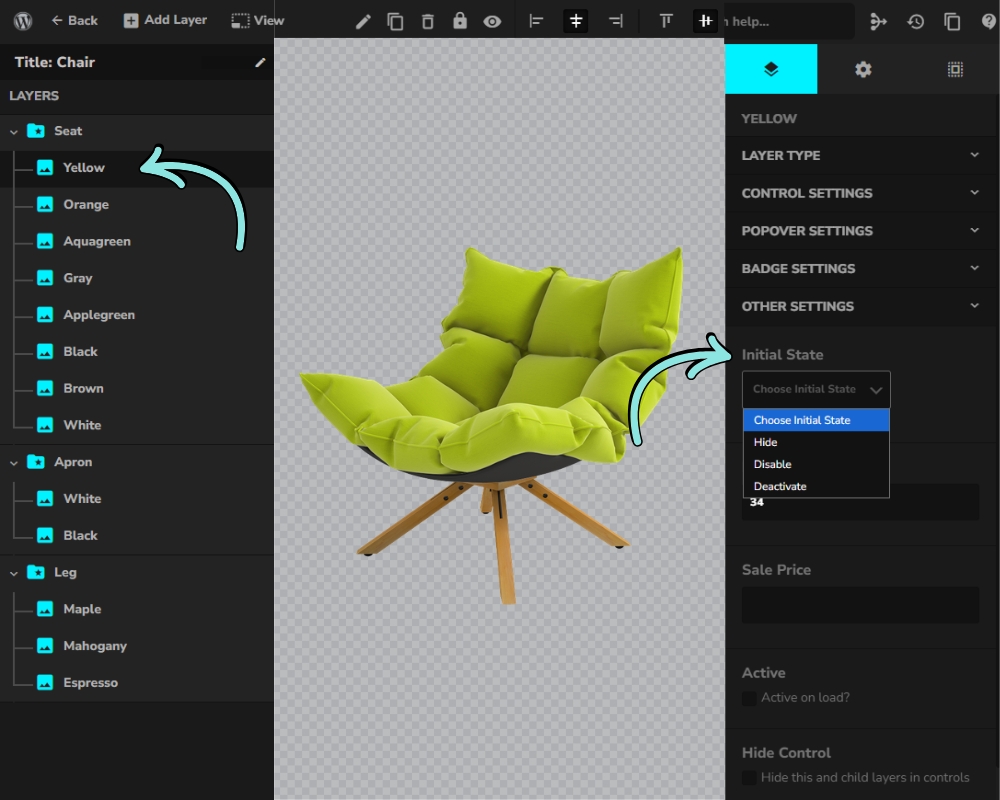
Available options:
- Hide
- Disable
- Deactivate (Editor only)
Initial State Options
Default (No Initial State)
If no Initial State is selected:
- The layer is visible.
- The layer is active.
- Customers can interact with it immediately.
Use this when the layer should be part of the default product configuration.
Hide
Hide removes the layer from view when the configurator first loads.
Use Hide when:
- The layer should only appear after a customer selects another option.
- The layer is controlled by Conditional Logic.
Example:
A pillow should only appear after selecting Premium Package.
Instead of:
- Loading the pillow
- Running a condition to hide it
Simply set:
Initial State → Hide
The pillow stays hidden until the condition shows it.
Disable
Disable keeps the control visible but prevents customers from selecting it.
Use Disable when:
- An option should not be selectable until another option is chosen.
- You want customers to see the option but not interact with it yet.
Example:
The Leather material is only available after selecting the Luxury Frame.
Set:
Initial State → Disable
Then use Conditional Logic to enable it once the required frame is selected.
Deactivate
Note: This option is intended for editor/setup purposes only.
A deactivated layer is completely removed from the frontend and cannot be activated using Conditional Logic.
If you need to show or enable a layer later through conditions, use Hide or Disable instead of Deactivate.
Summary
Initial State is required for defining the default appearance of your configurator.
It determines whether a layer starts as hidden, or disabled when the configurator loads. After the customer begins interacting with the configurator, Conditional Logic can be used to show, hide, enable, or disable layers as needed.