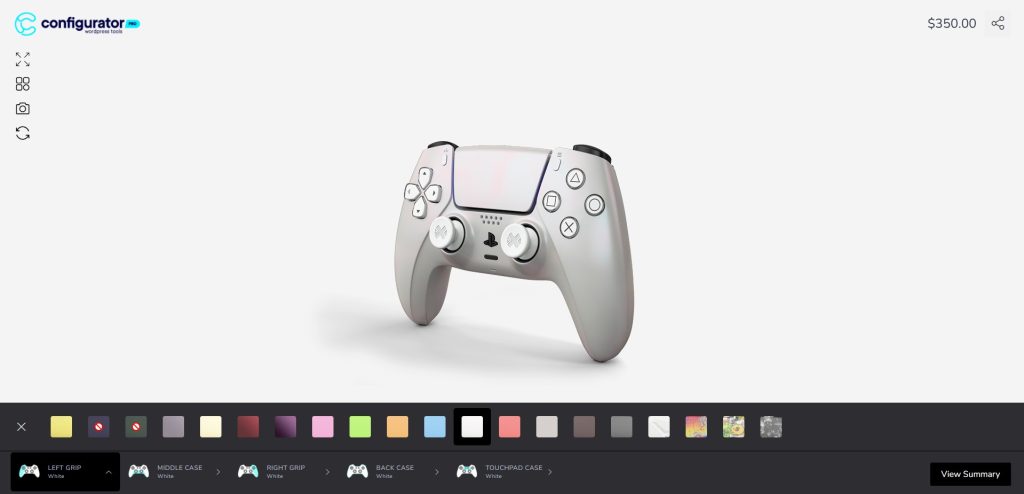
Enabling Stock Management on a Layer
-
Open your configurator product in the editor.
-
Select the layer you want to control stock for (e.g. Metallic Yellow in the screenshot below).
-
In the right-hand panel, expand Stock Management.
-
Check Manage Stock to enable inventory control for that layer.
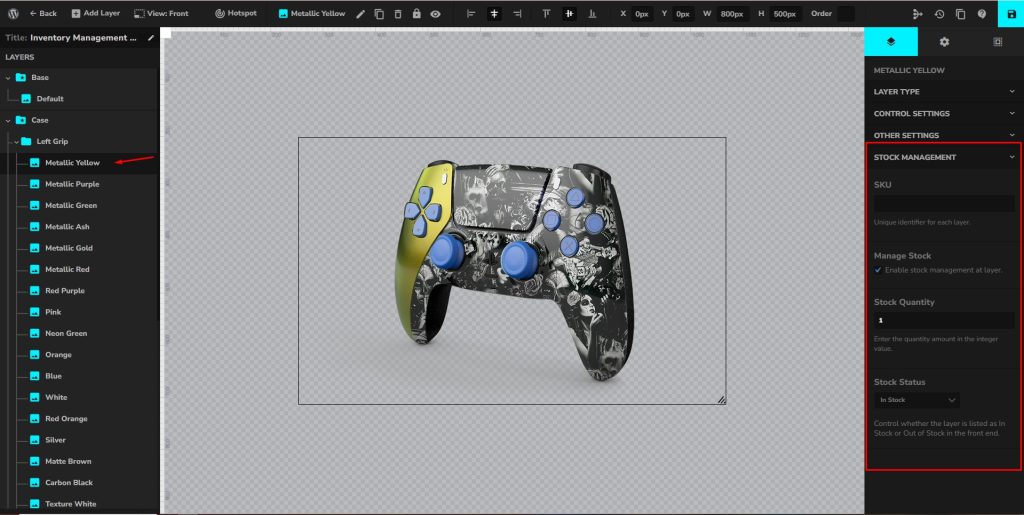
SKU (Stock Keeping Unit)
-
Purpose: Assigns a unique identifier to each layer option.
-
Example:
CASE-YELLOW-METALLIC -
This makes it easier to track stock in your system and generate reports.
Stock Quantity
-
Definition: The available number of units for this option.
-
Enter an integer value (e.g.
10). -
Each time a customer orders this option, the stock will reduce automatically.
📌 Example:
If you set Stock Quantity = 5, then only 5 customers can purchase that option. Once the 6th tries, it will be marked out of stock.
Stock Status
-
Options:
-
In Stock → Customers can select the layer.
-
Out of Stock → The option will be disabled on the front end.
-
This lets you manually override availability, even if stock quantity > 0.